Embed a LangBot chat widget into any website with a single script tag.
Create Bot
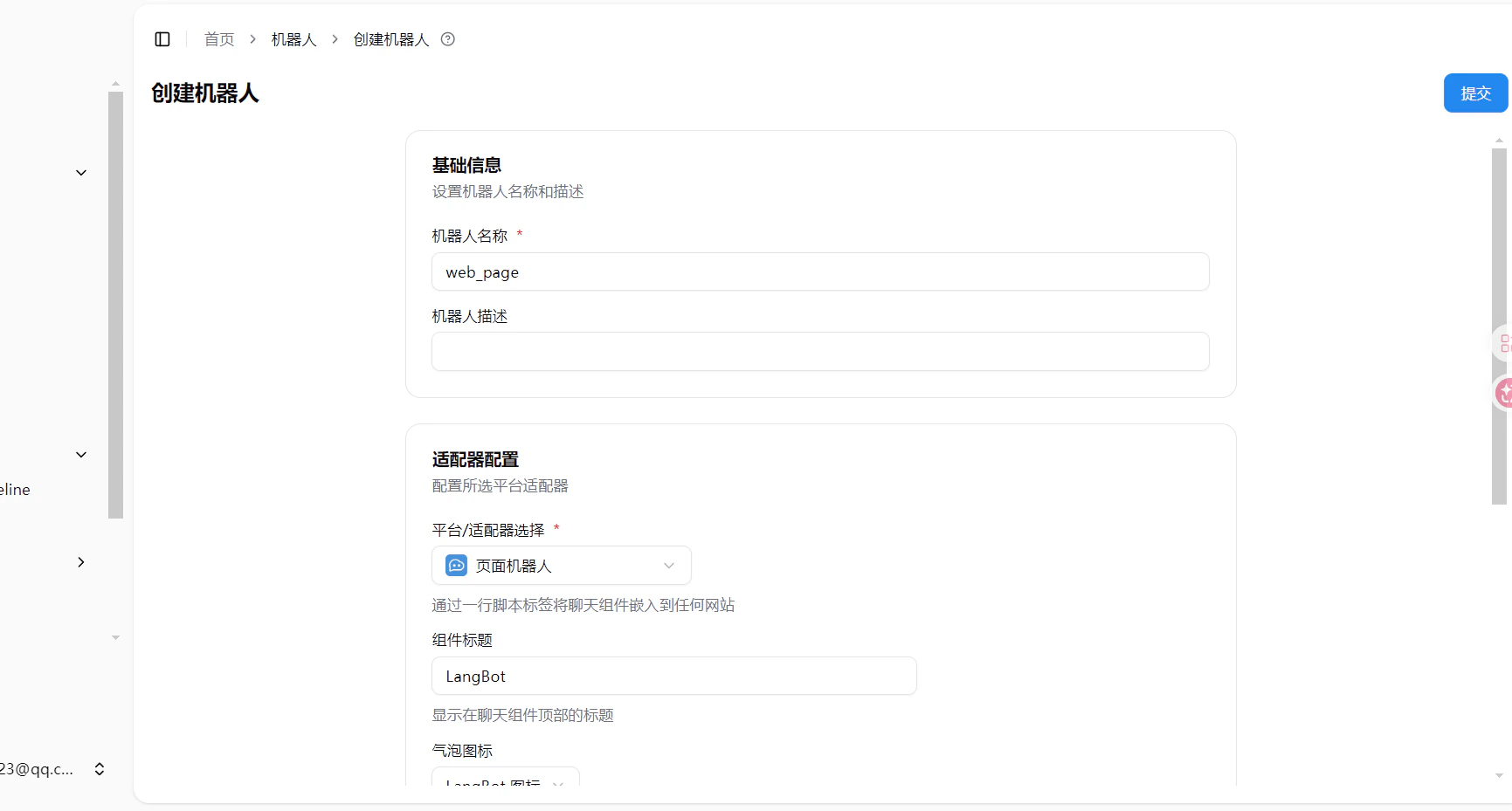
Open LangBot WebUI, go to Bots > Create Bot, enter a bot name, and select Web Page Bot as the platform/adapter.
Configuration
| Option | Description |
|---|
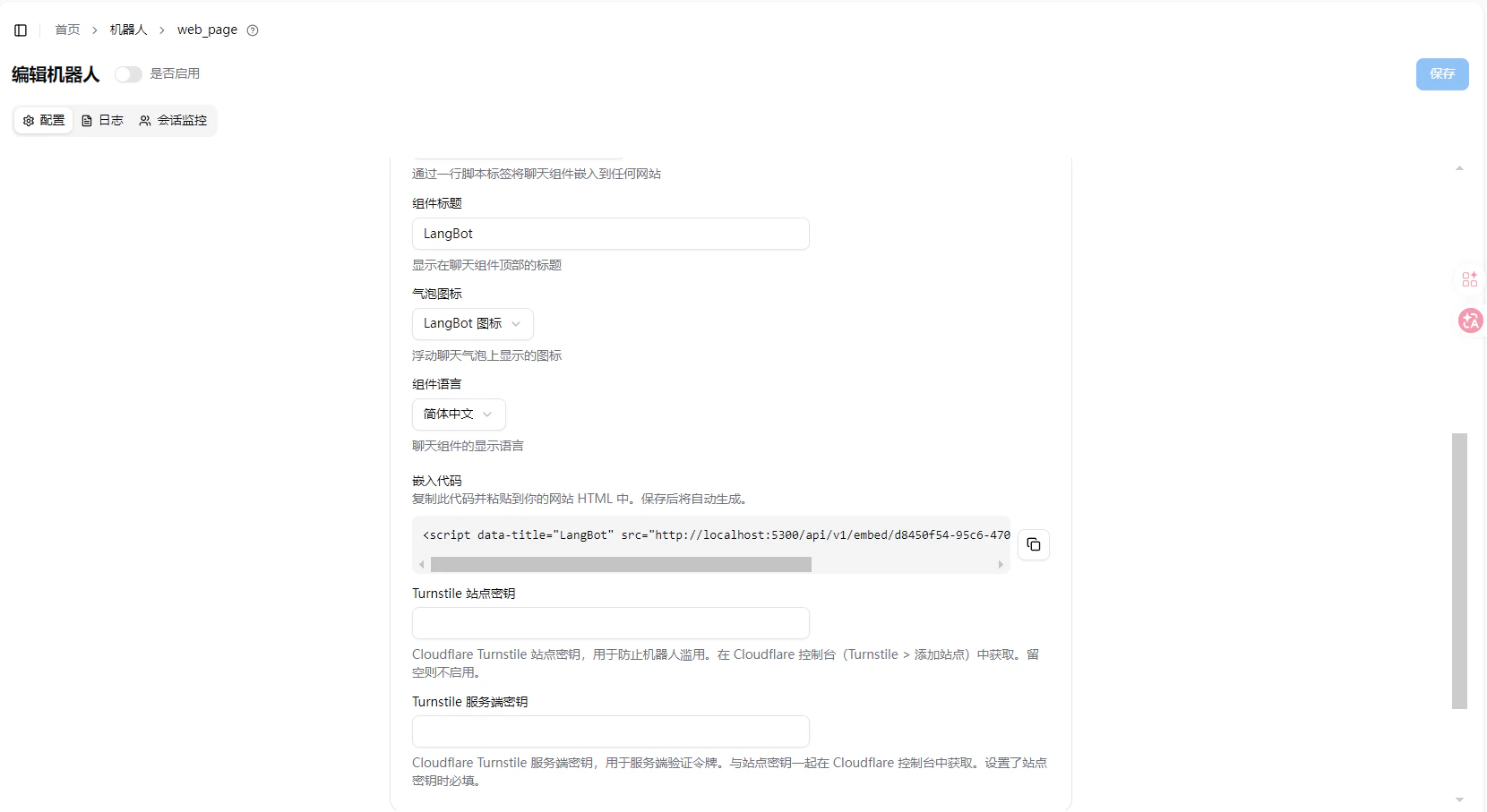
| Component Title | Title displayed at the top of the chat widget, defaults to LangBot |
| Bubble Icon | Icon displayed on the floating chat bubble |
| Component Language | Display language for the chat widget (Simplified Chinese, English, etc.) |
| Turnstile Site Key | Cloudflare Turnstile site key for anti-abuse protection. Leave empty to disable |
| Turnstile Secret Key | Cloudflare Turnstile secret key, obtained together with the site key from Cloudflare console. Required when site key is set |
Get Embed Code
After creating and saving the bot, an auto-generated <script> tag will appear in the Embed Code section of the bot configuration page.
Copy this code and paste it into your website HTML (typically before </body>). A chat bubble will appear at the bottom-right corner of the page, allowing visitors to chat with your bot.
<script data-title="LangBot" src="http://localhost:5300/api/v1/embed/xxxxxxxx-xxxx-xxxx-xxxx-xxxxxxxxxxxx"></script>
The embed code URL defaults to localhost. If your LangBot is deployed on a server, replace localhost:5300 with your actual address.
Anti-Abuse (Optional)
To protect against abuse, you can enable Cloudflare Turnstile:
- Go to Cloudflare Turnstile > Add Site
- Get the Site Key and Secret Key
- Fill them into the corresponding fields in the LangBot Web Page Bot configuration
- Save to take effect
Start Using
After adding the embed code to your website, visitors can click the chat bubble at the bottom-right corner to start chatting with your bot.