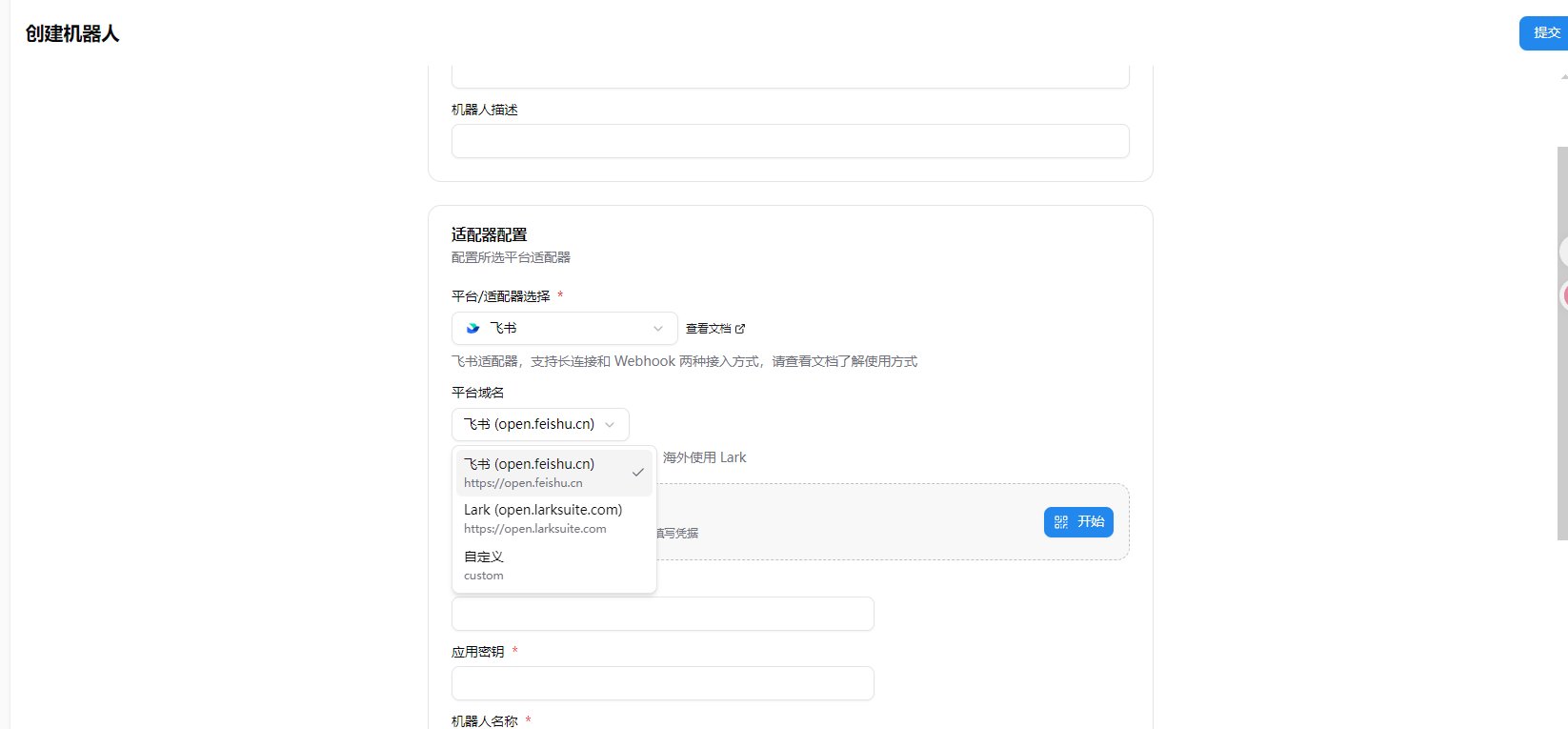
Select Platform Domain
When creating a bot, you need to select the Platform Domain in the Adapter Configuration section:- Feishu (open.feishu.cn): For mainland China Feishu users (default)
- Lark (open.larksuite.com): For overseas Lark users
- Custom: For private deployment users
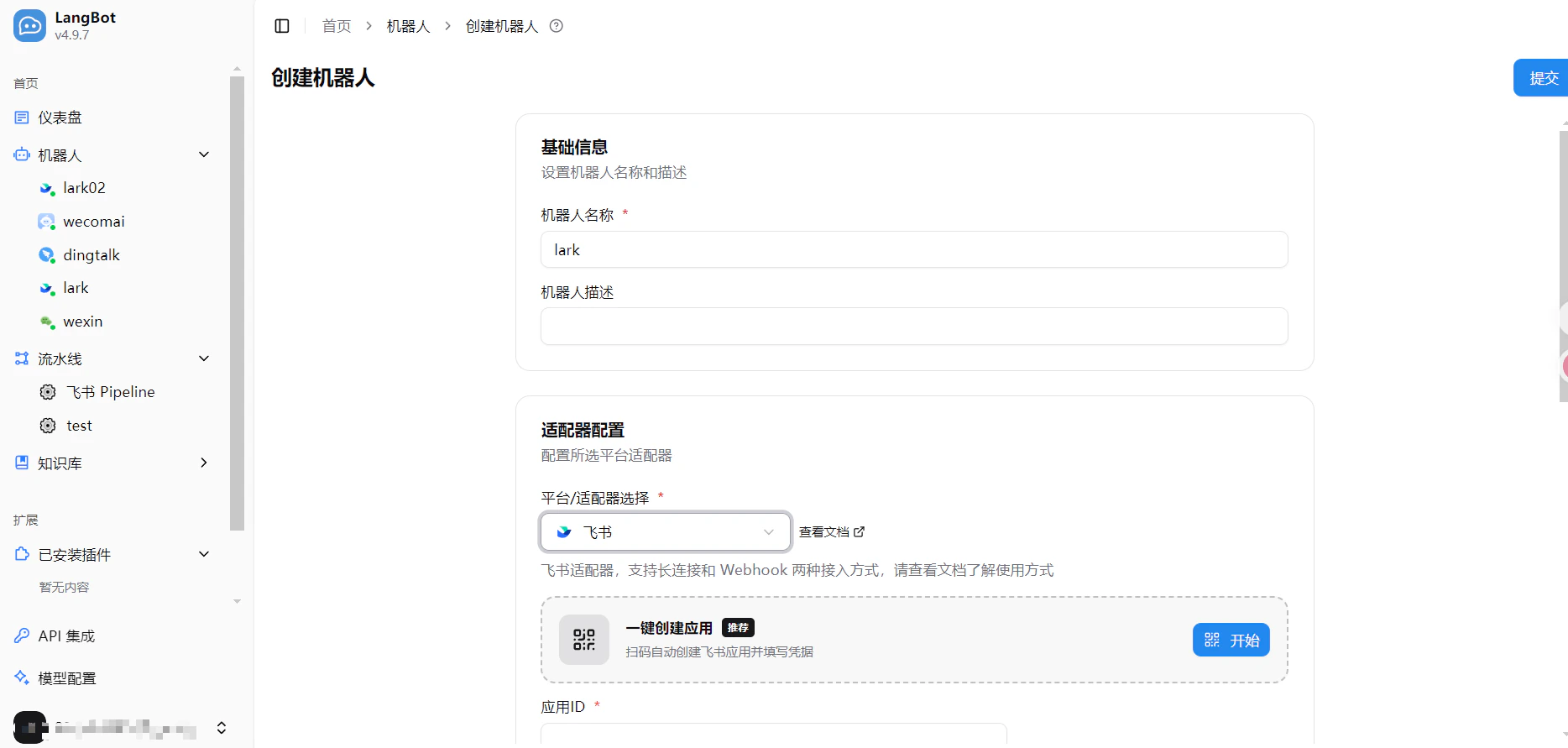
One-Click Setup (Recommended)
LangBot supports one-click Feishu app creation with automatic credential filling — no manual copy-paste needed.- Open LangBot WebUI, go to Bots > Create Bot
- Enter a bot name, select
Feishuas the platform/adapter - In the One-Click Create App section that appears, click the Start button
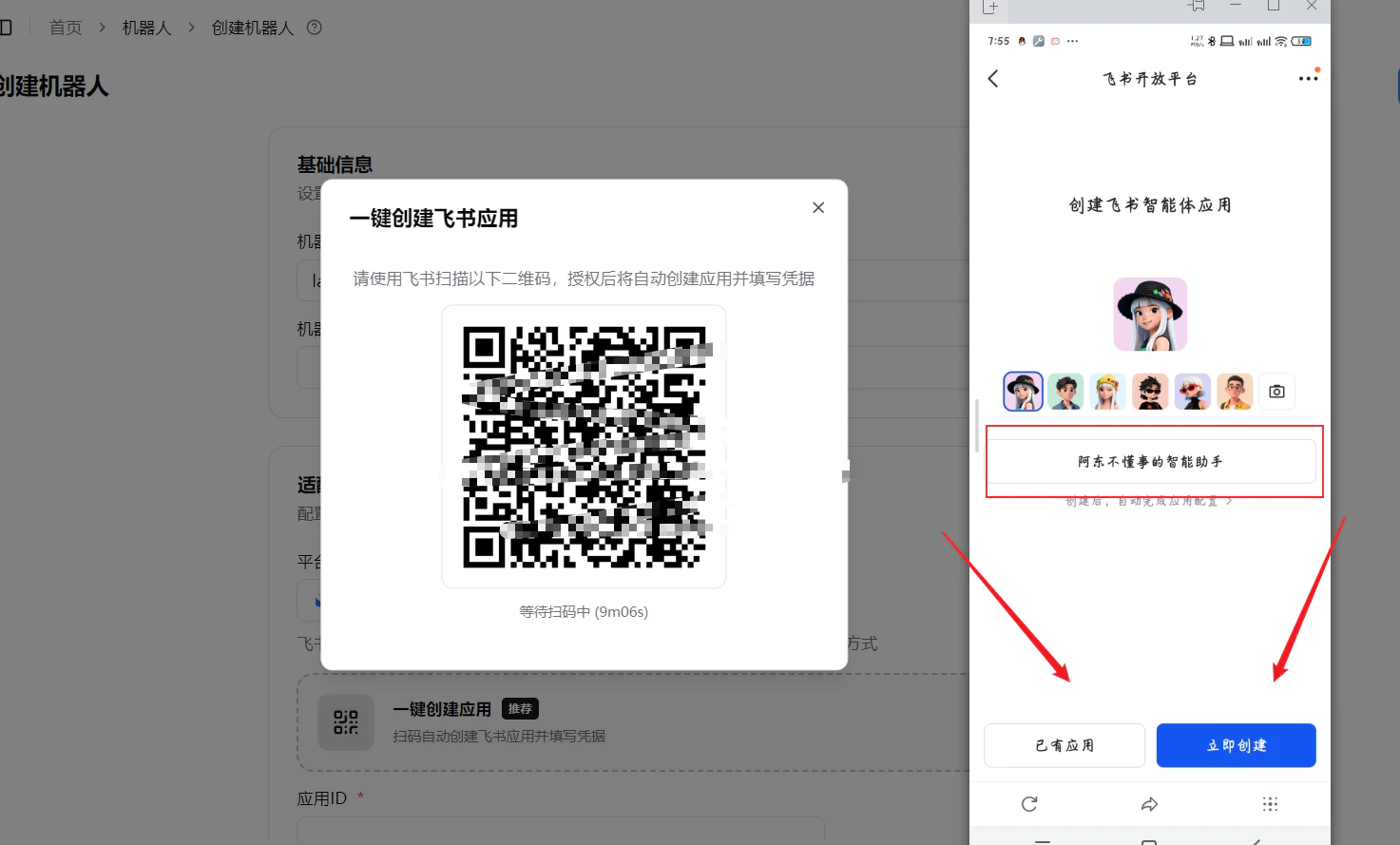
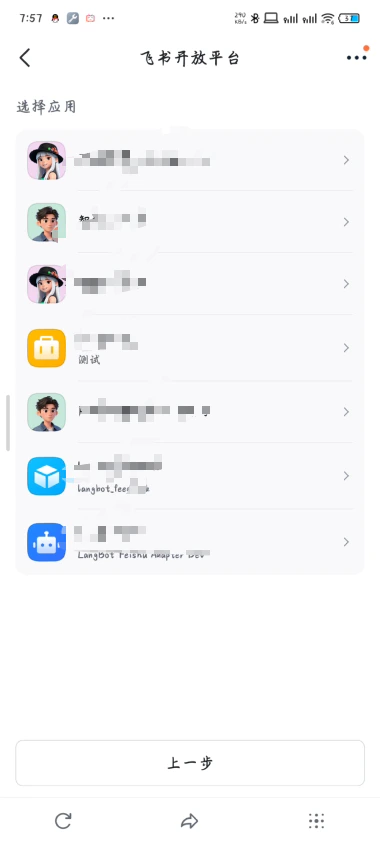
- Scan the QR code with Feishu. On your phone, you’ll see the Feishu Open Platform’s bot creation page
- Choose to use an existing app or create a new one:
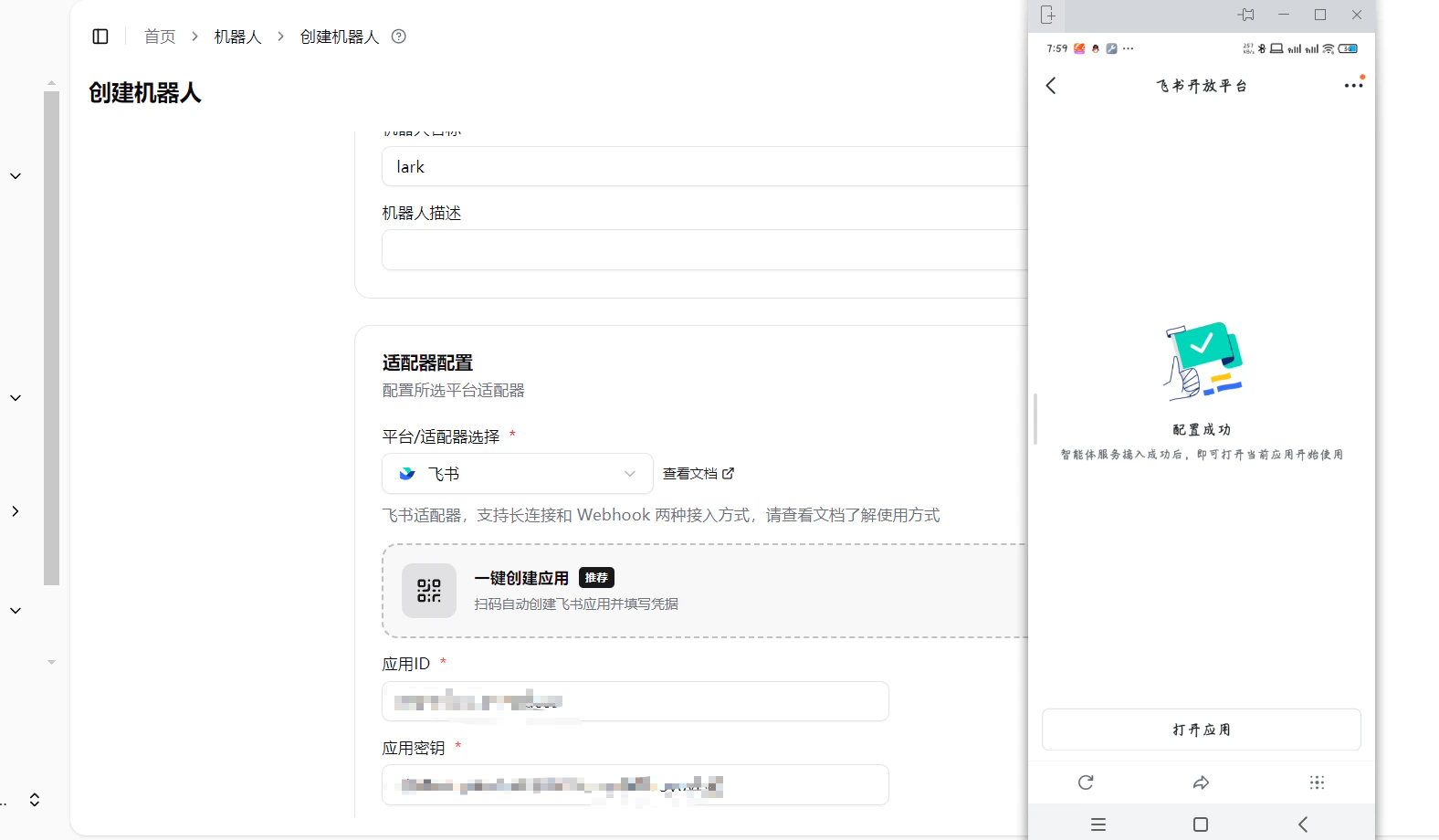
- After authorization, the phone will show “Configuration Successful”, and app_id / app_secret will be auto-filled in the LangBot WebUI
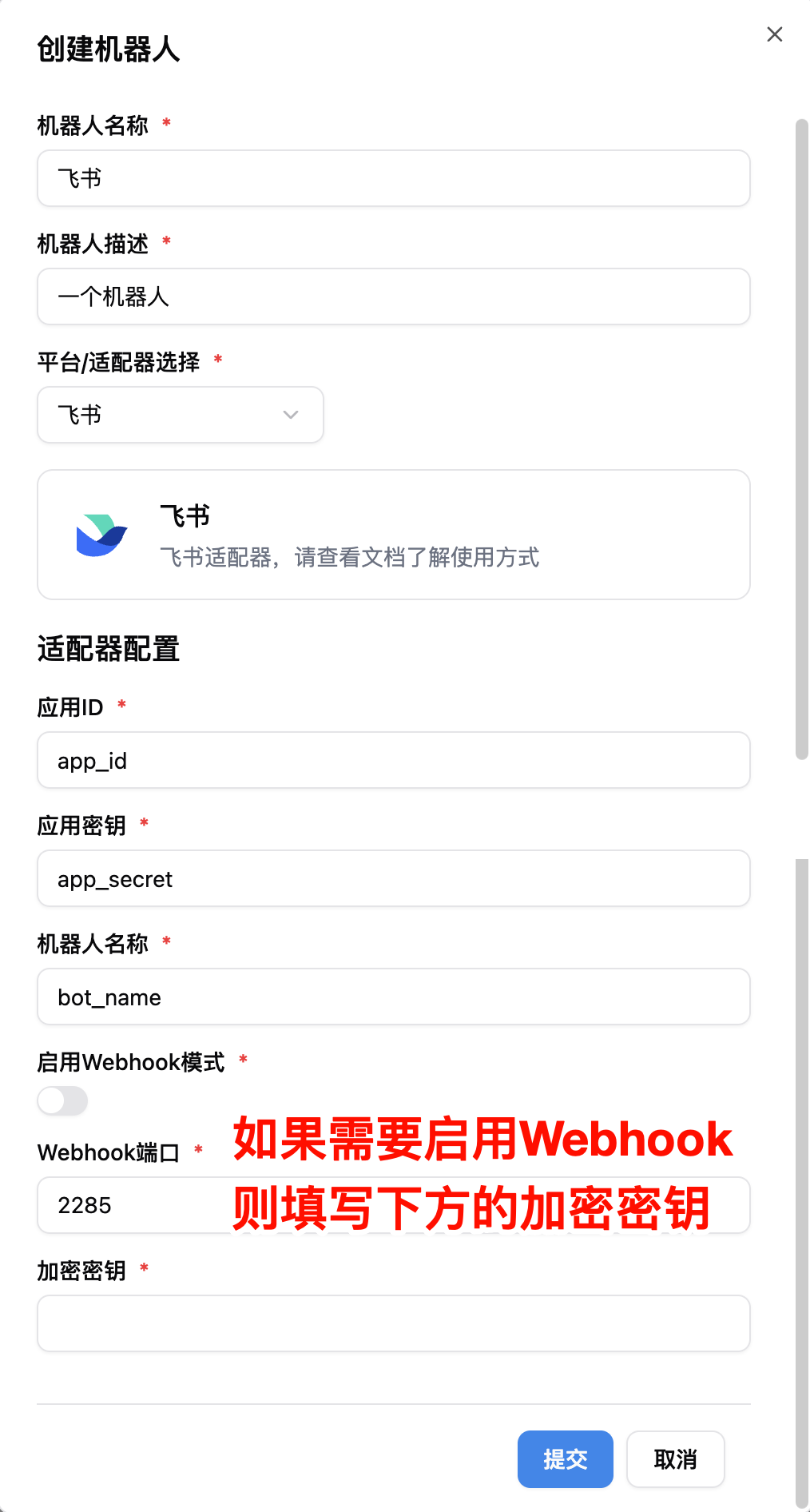
- Manually fill in the bot name — it must match the Feishu bot name, otherwise the bot won’t receive messages in groups
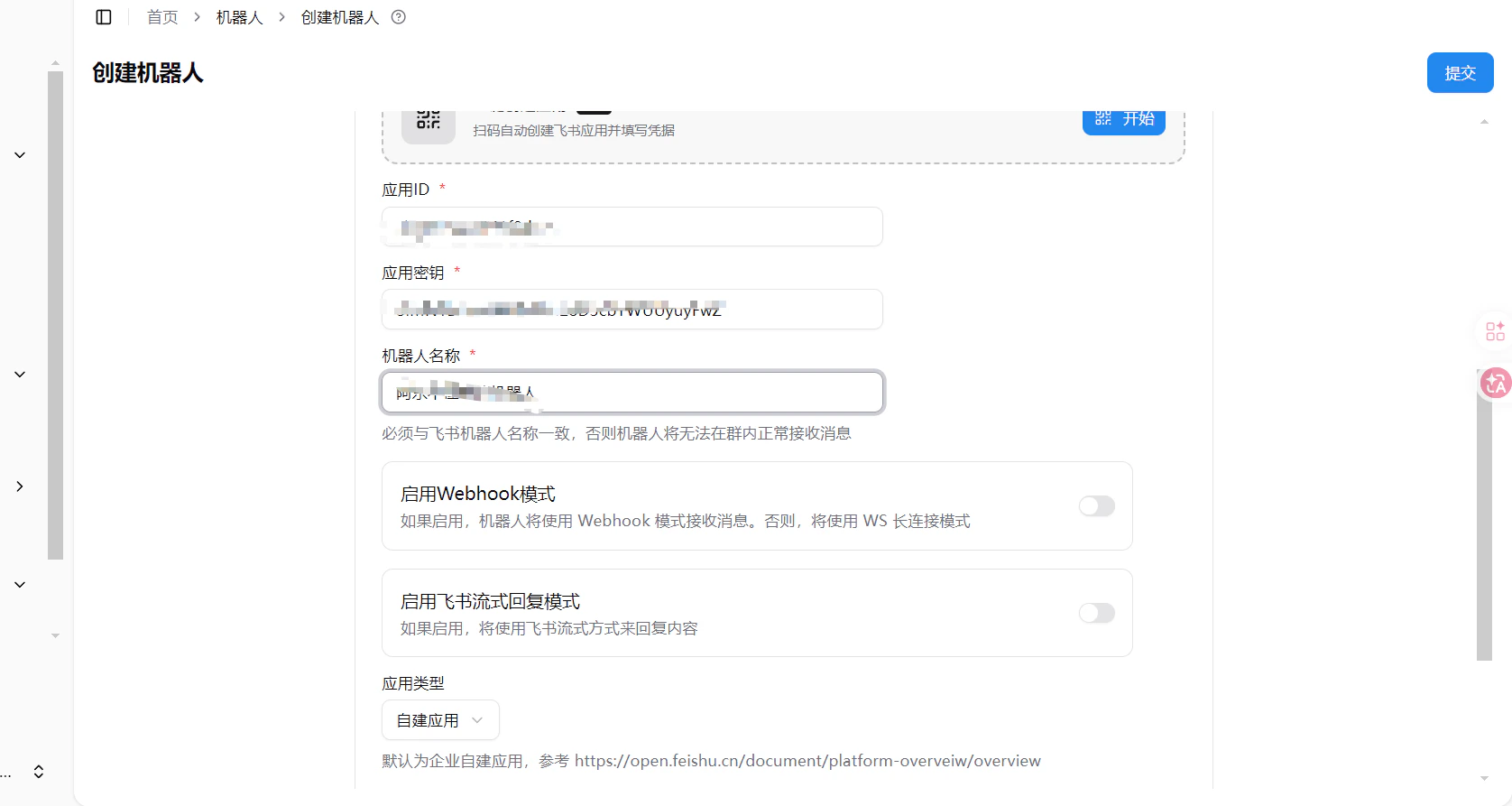
- Click Submit to complete
Create Bot
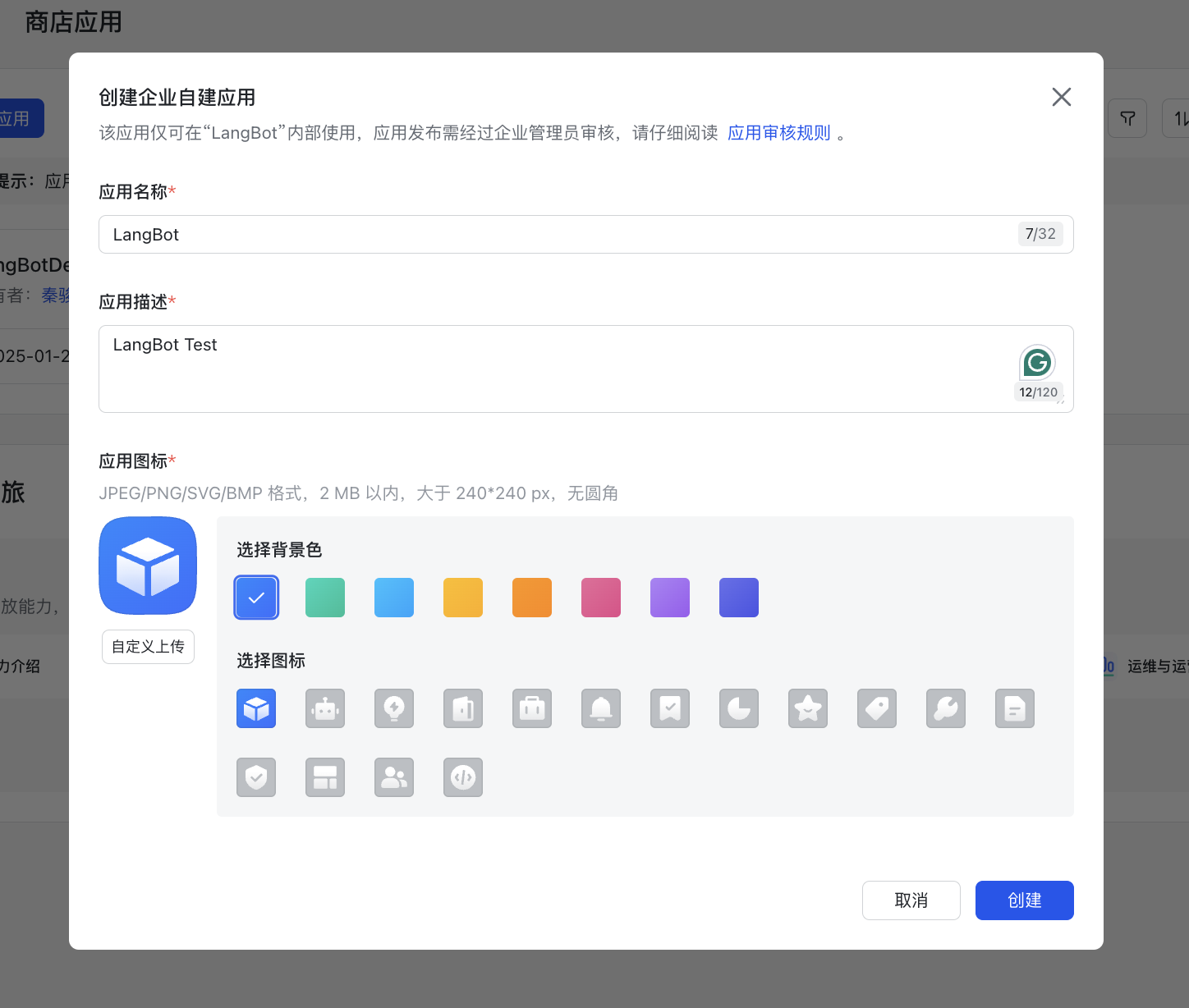
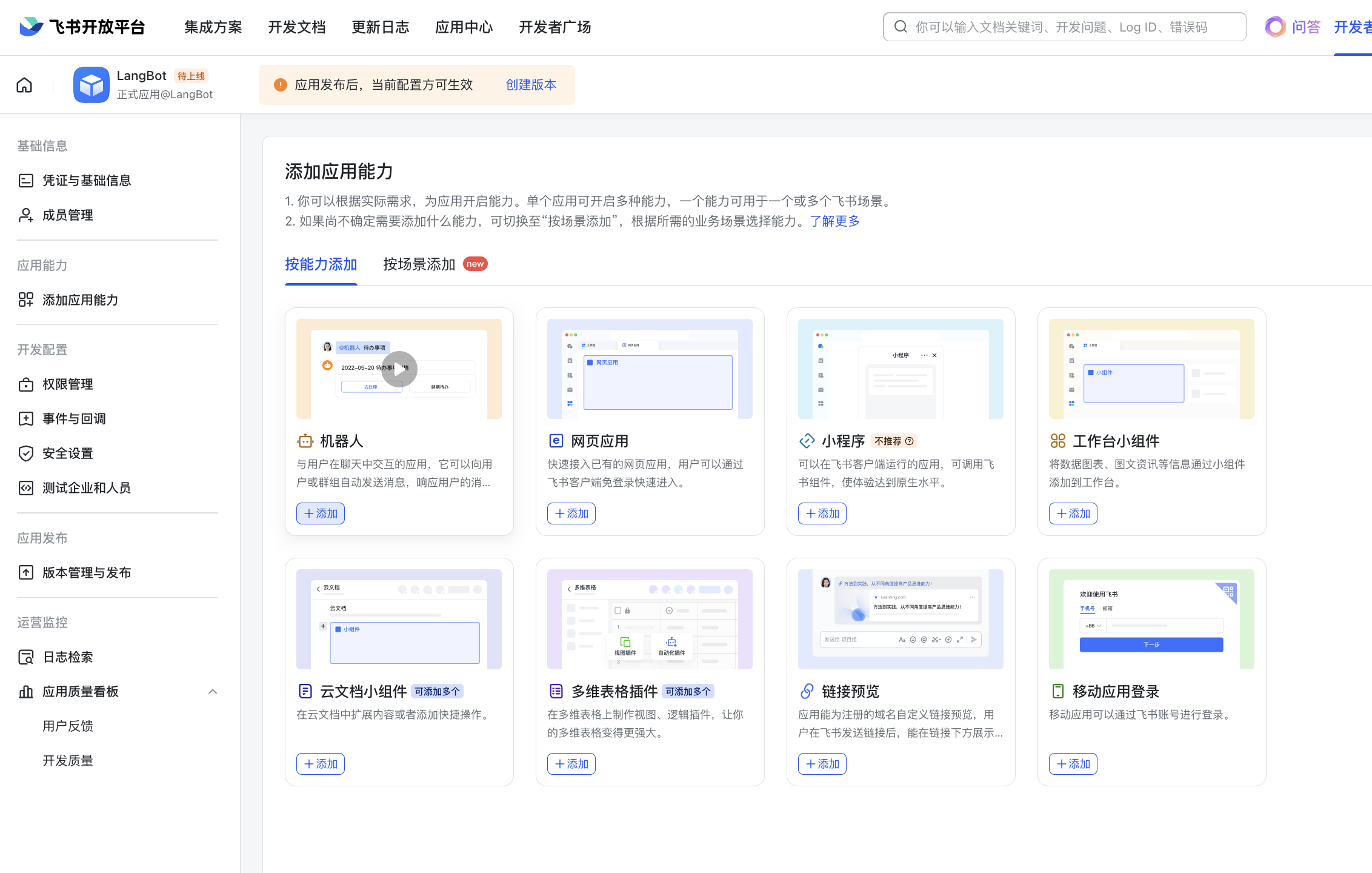
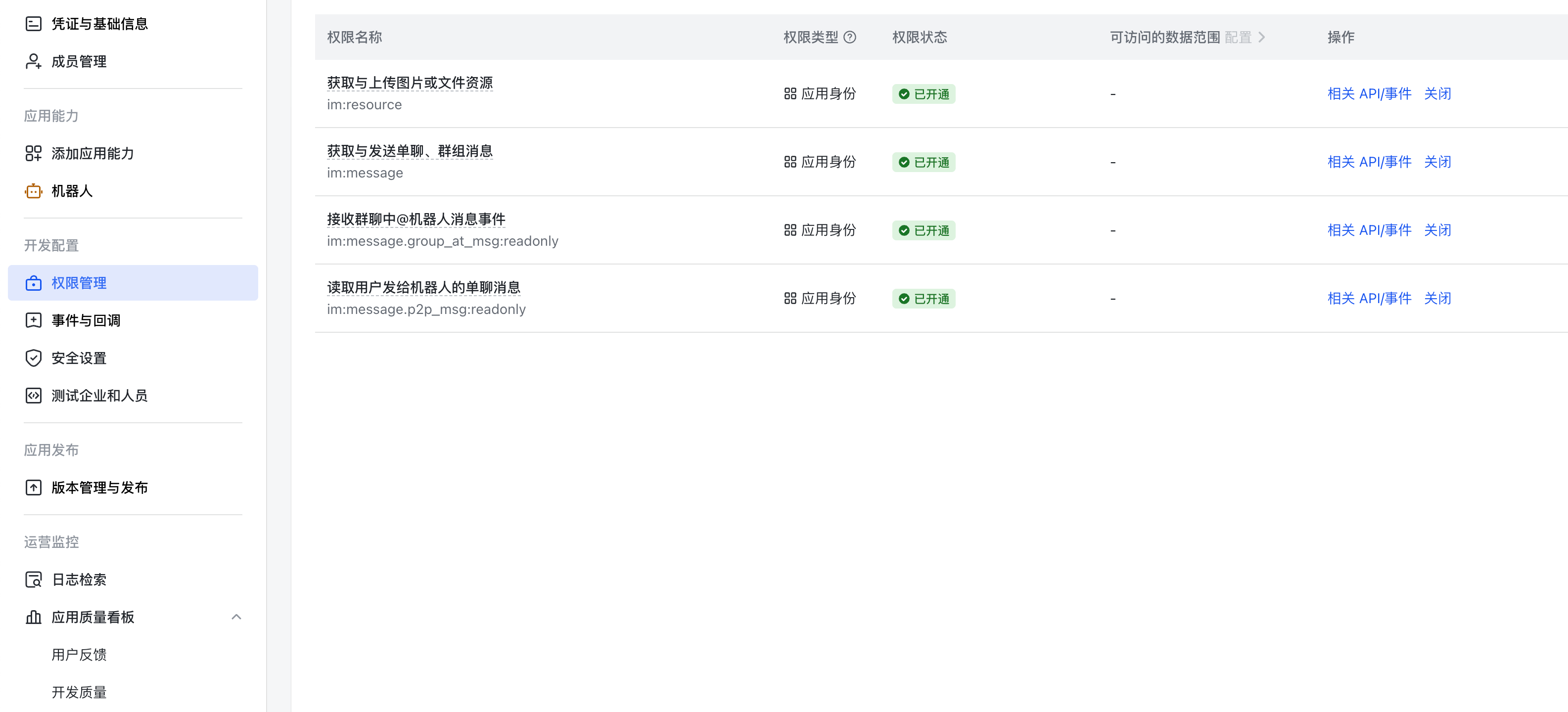
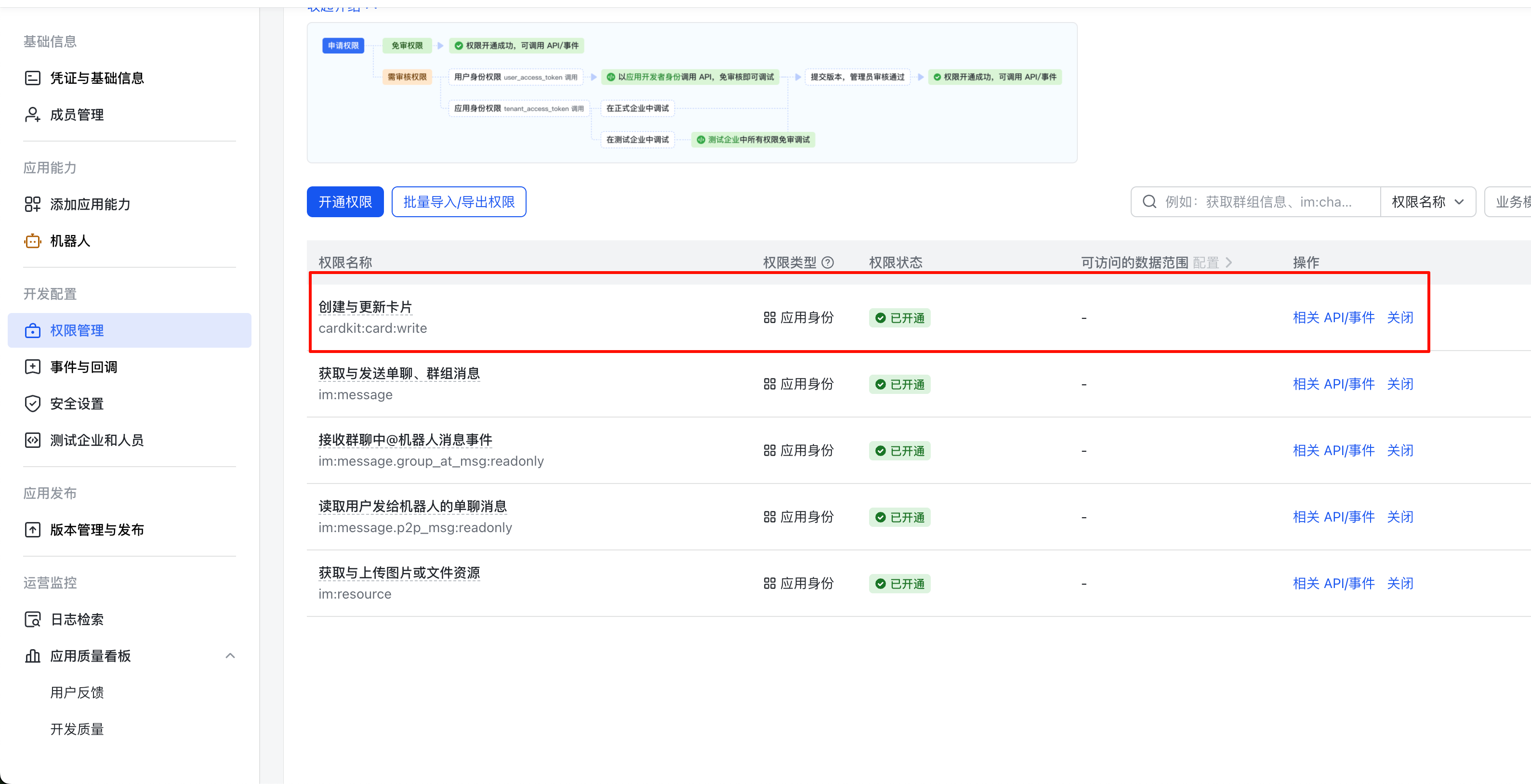
Go to the Feishu Open Platform, log in, and create an enterprise self-built application or store application. (difference introduction)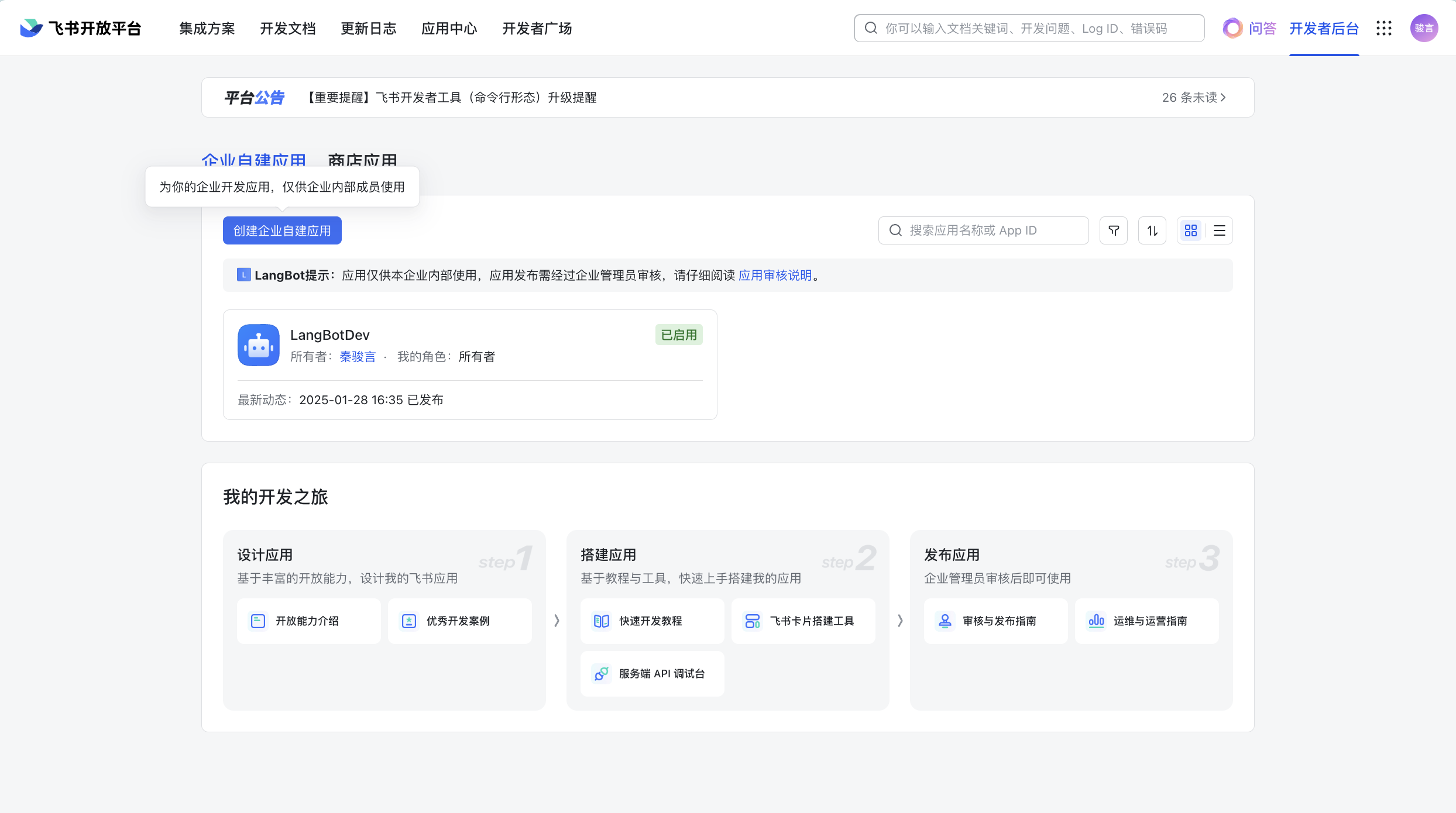
Connect to LangBot
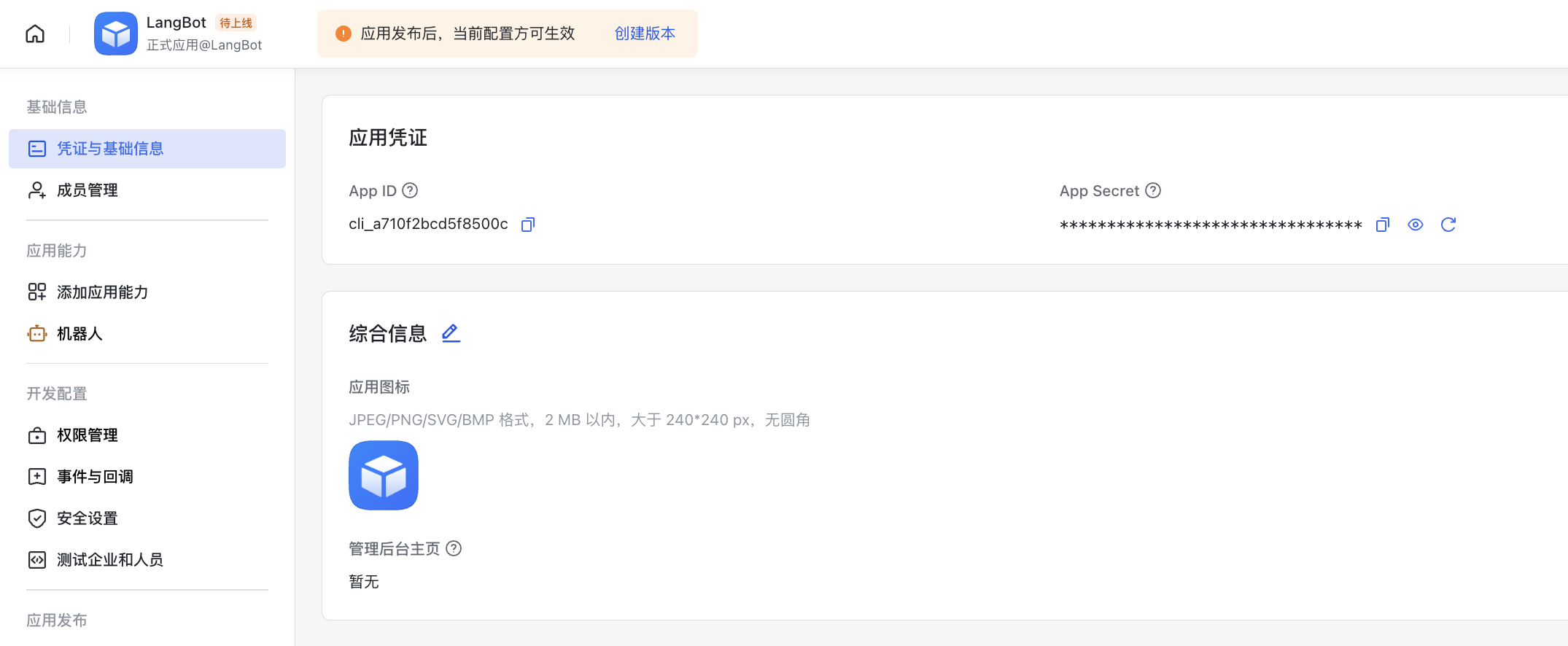
Findapp_id and app_secret on the Credentials and Basic Information page.
[01-29 23:42:56.796] manager.py (68) - [INFO] : Initializing platform adapter 1: lark, keep LangBot running.
Configure Event Subscription
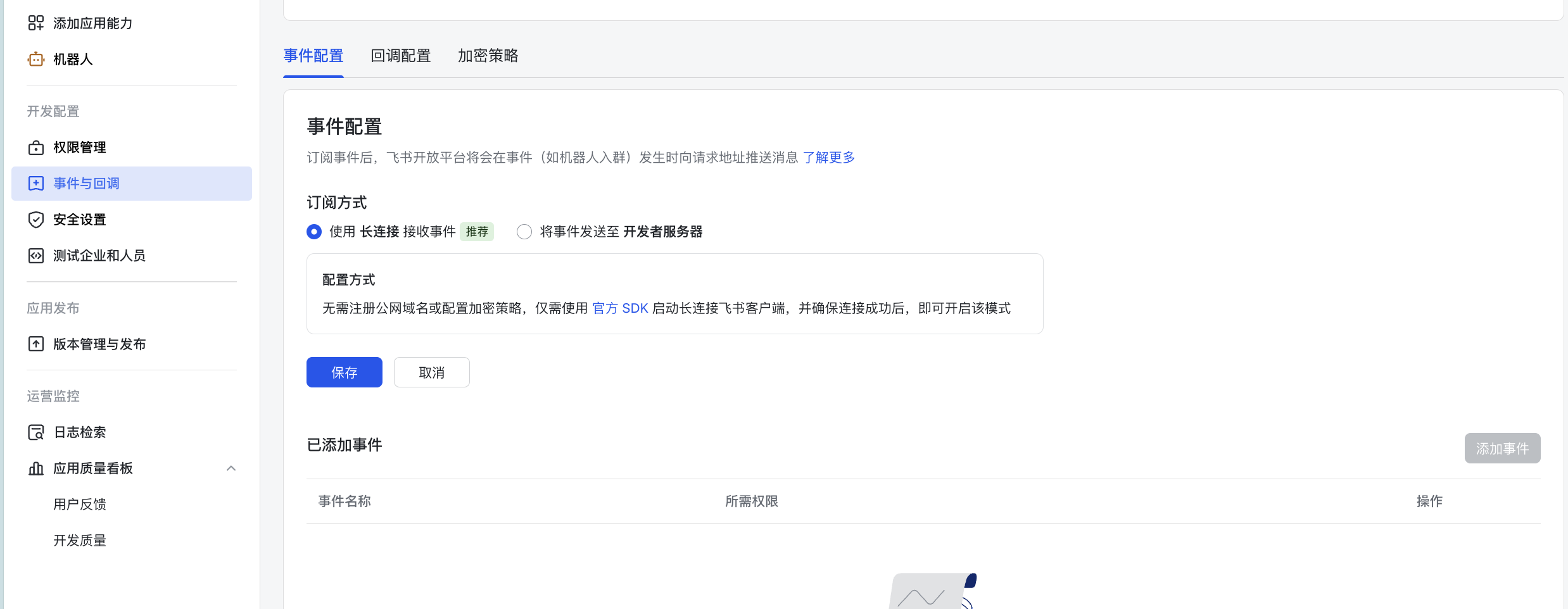
Go to theEvents and Callbacks page, configure the subscription method as Long Connection:
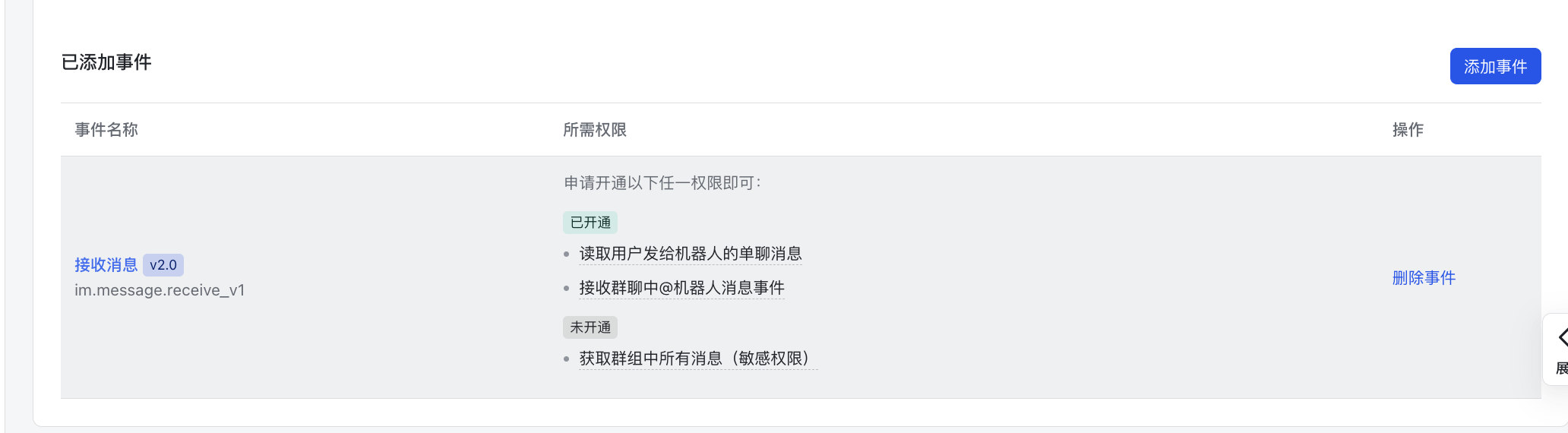
Receive Messages
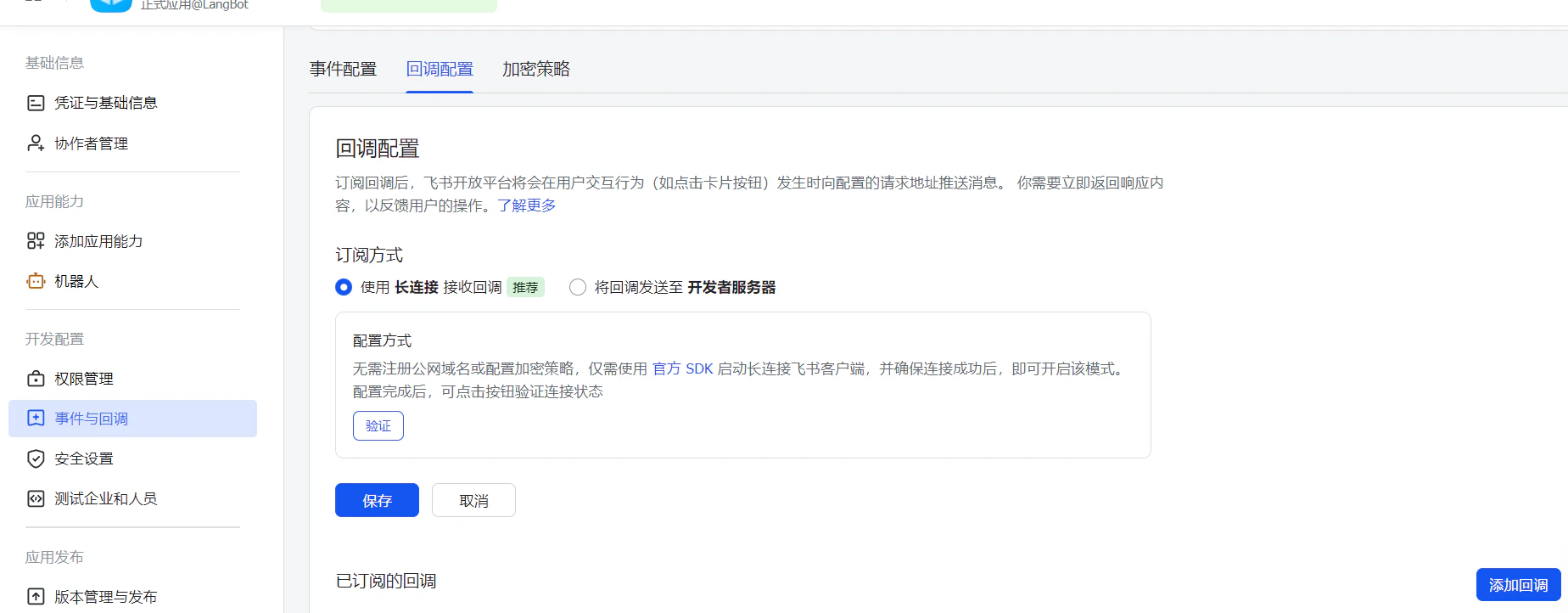
Callback Configuration, select the long connection callback (use webhook if using webhook mode)
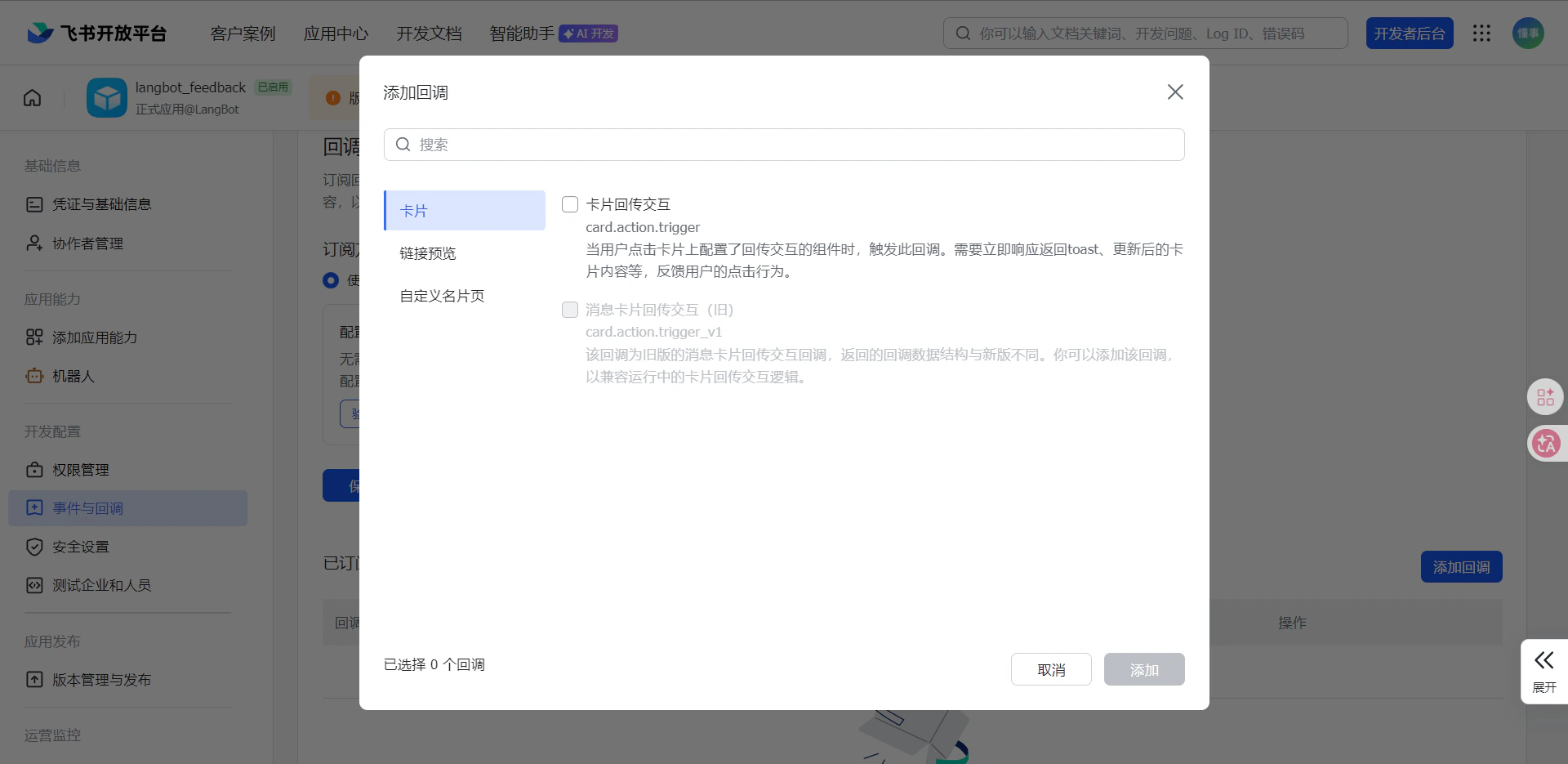
Card Callback Interaction
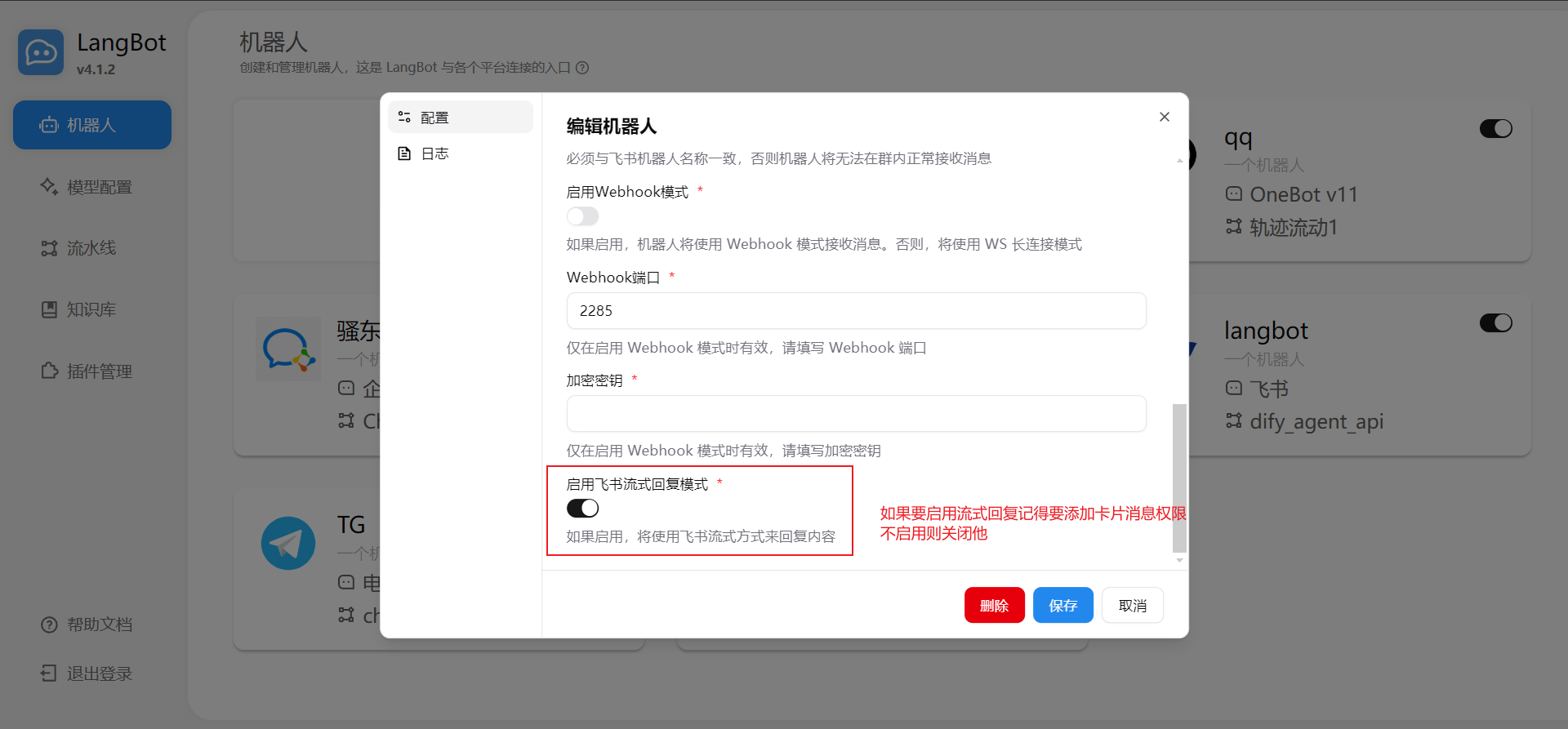
Webhook mode configuration method: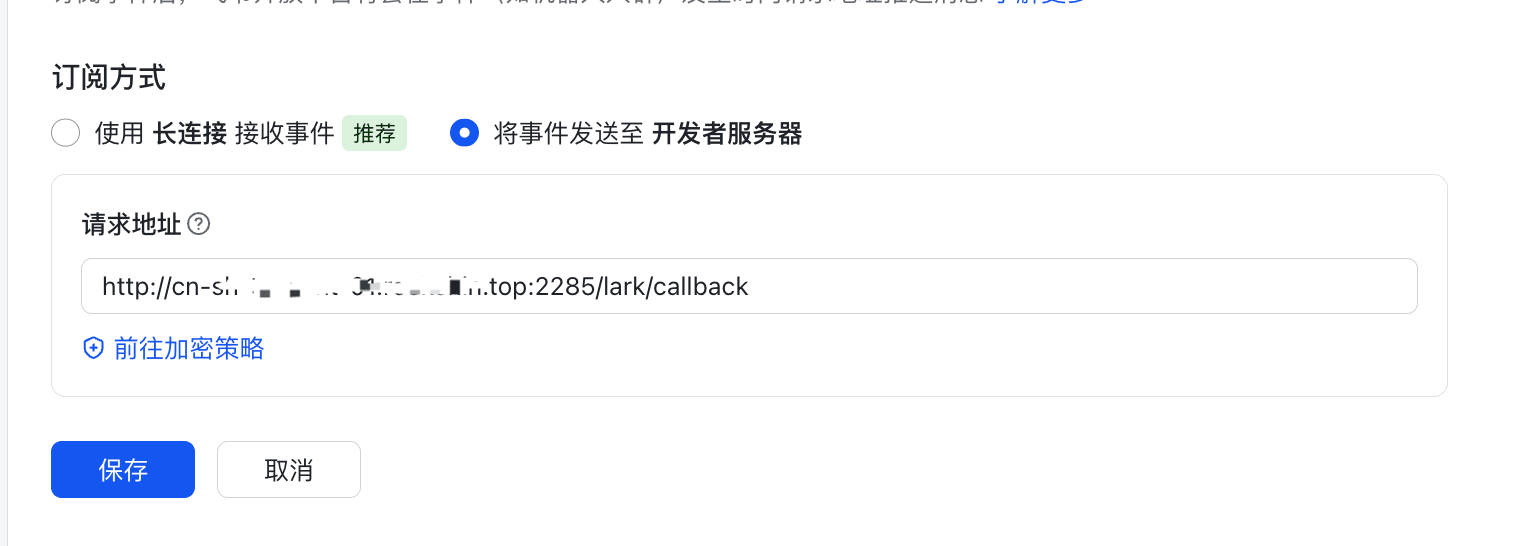
Publish Bot
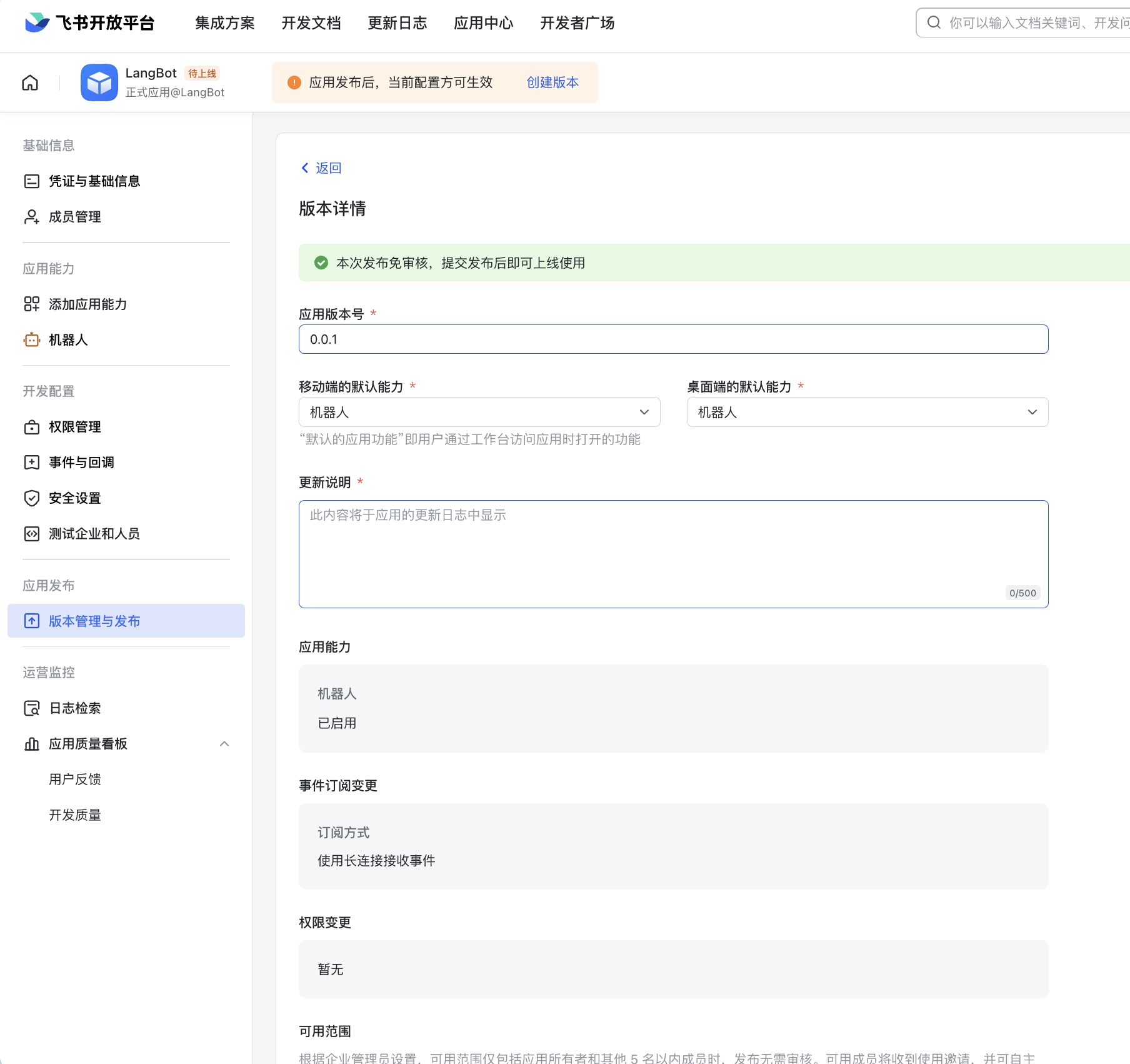
ClickCreate Version at the top, fill in the version number and other information, click Save below.
Common Issues
- Store app bots cannot respond to chat messages immediately after creation/saving. Due to the app_ticket event delay mechanism, you need to wait about 2 minutes before it can work normally.