
LangBot Models
LangBot Models is an official model service provided by LangBot. When you initialize a local instance with your LangBot Space account, available models will be automatically added to your instance without any configuration. You will receive a certain amount of free quota to get started quickly.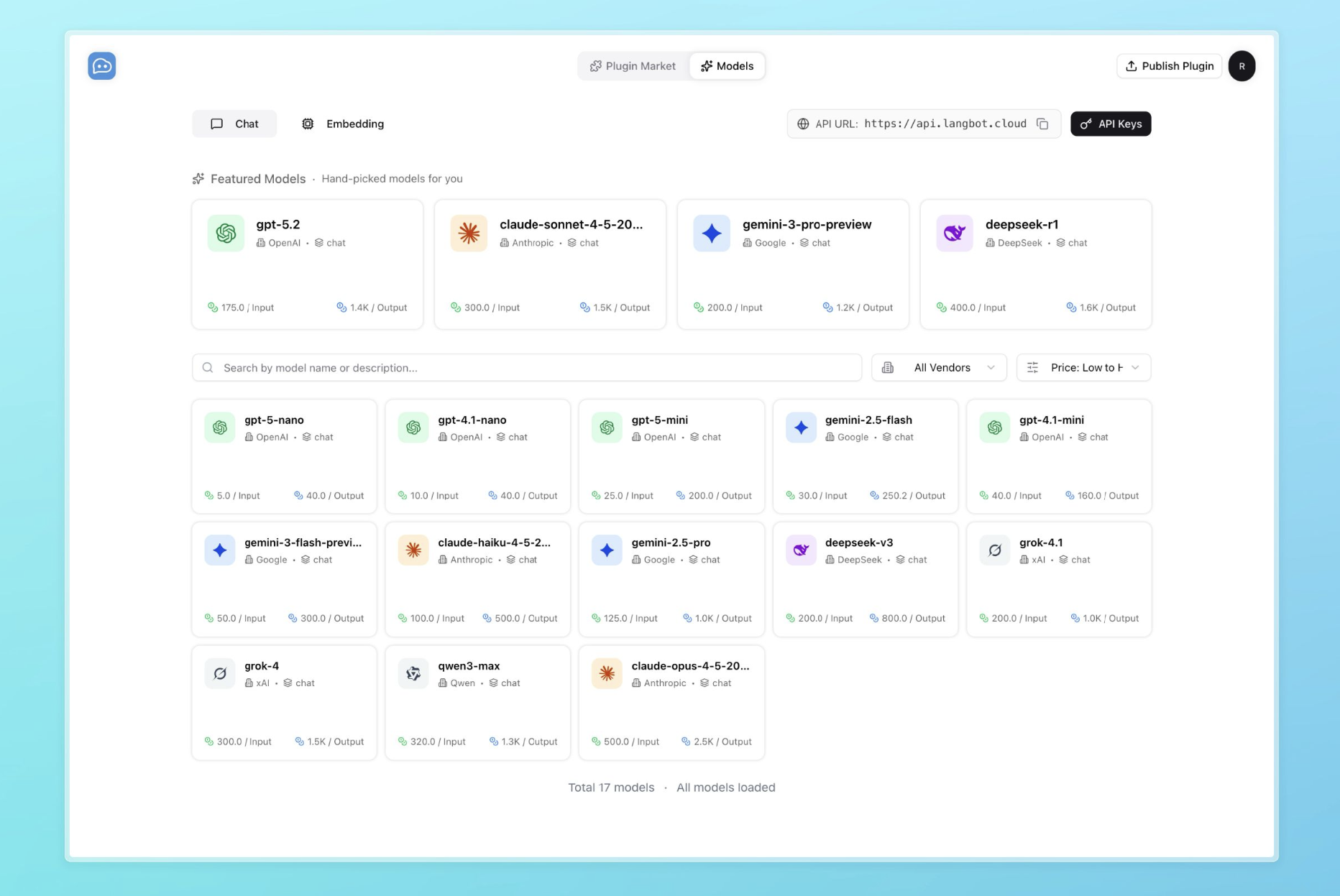
Custom Models
You can also add models from other sources.LLM Model
Models will be used by pipelines to process messages. The first model you configure will be set as the model for the default pipeline.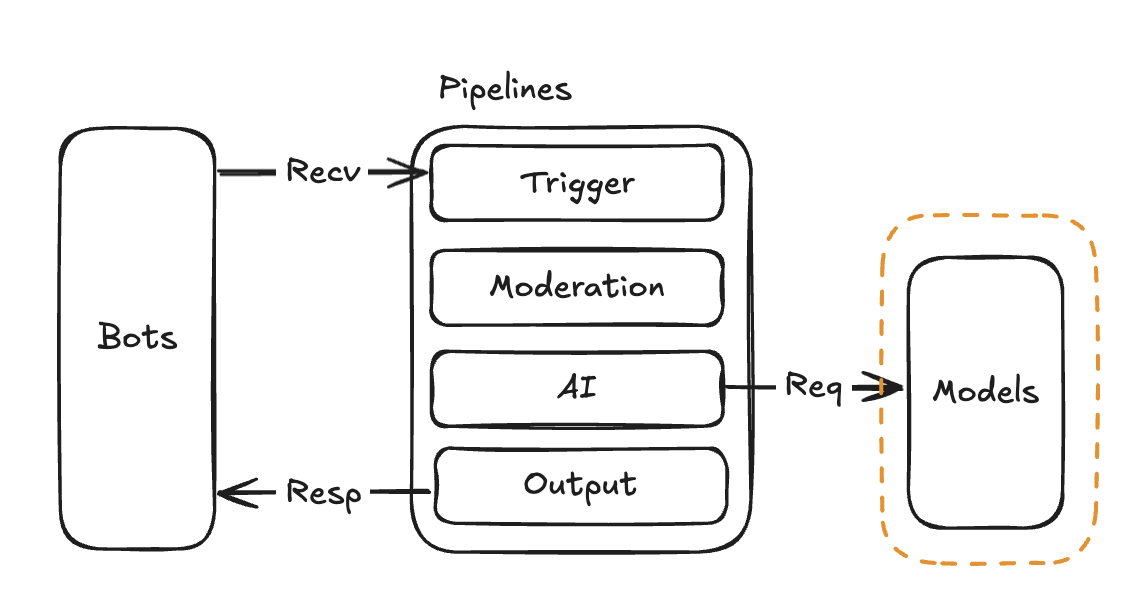
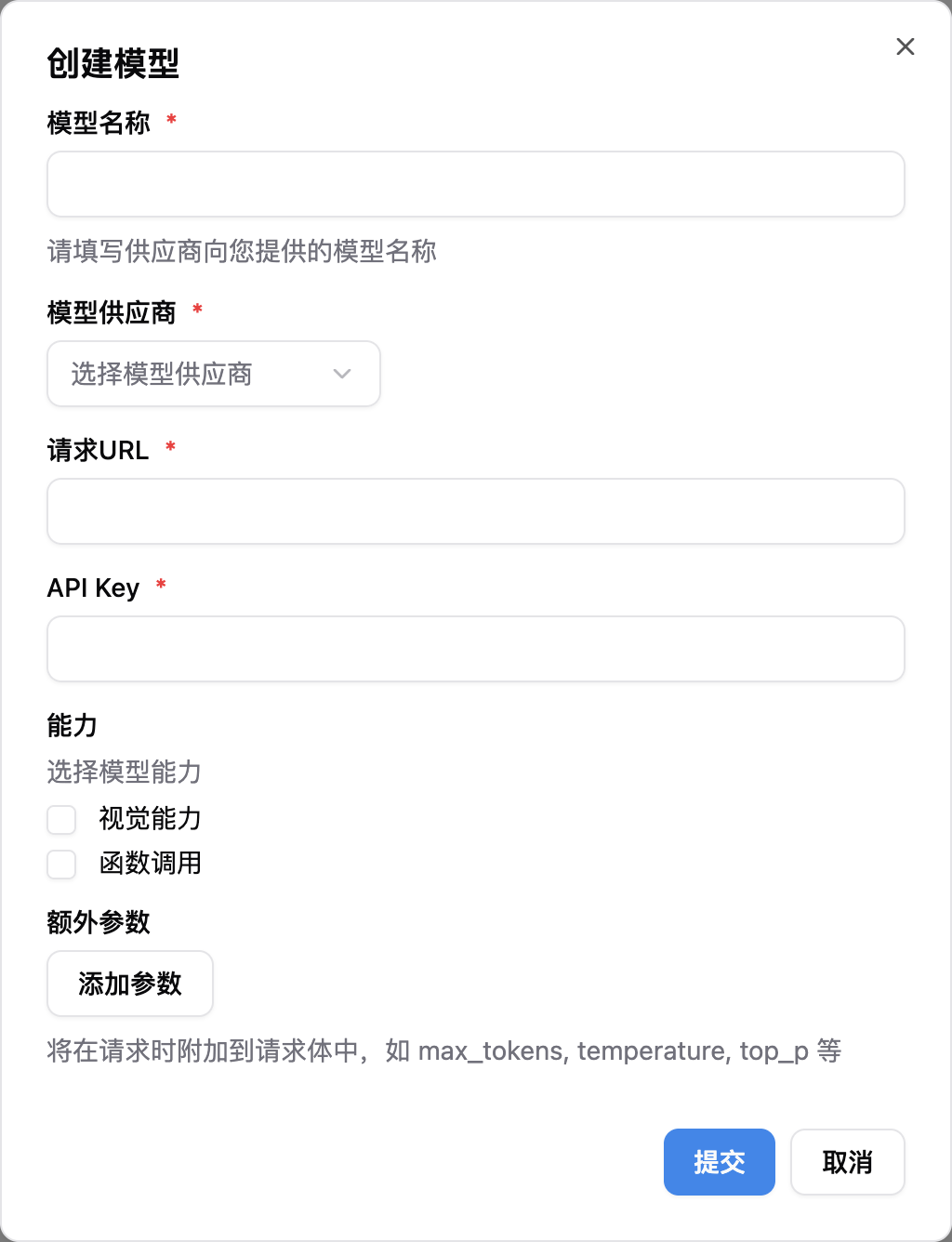
Model Name, Model Provider, Request URL, and API Key, then submit.
For model capabilities, enable the ones the underlying model actually supports:
- Vision: enable to recognize images
- Tool Use (function calling / tool use): enable so the LLM can call tools during a conversation
Tool Use must be enabled on the model whenever you want to use tools from MCP servers, sandbox built-ins (
exec/read/write/edit/glob/grep), or Skills. Without it, even if the pipeline binds those extensions, the Agent won’t call any tools.The underlying model has to actually support function calling for this checkbox to take effect — check the model provider’s docs if unsure.Embedding Model
Embedding models are used to compute vector representations of messages. If you need to use knowledge bases, please configure this model.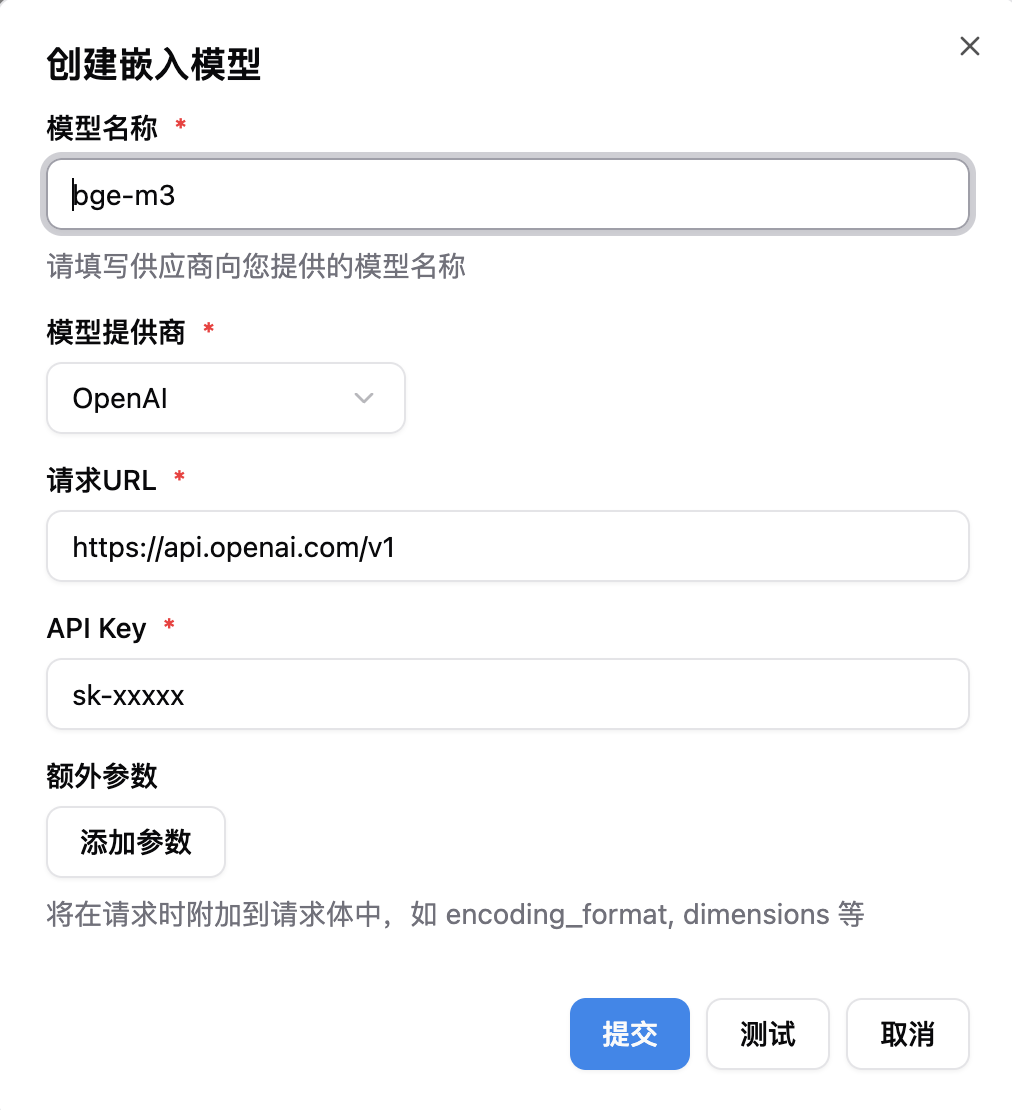
Model Name, Model Provider, Request URL, and API Key, then submit. After that, please configure the knowledge base to use this model.
Using the seekdb Built-in Embedding Model (Optional Dependency Required)
The model needs no request parameters. Useuv sync --extra seekdb for source deployments or uvx --from 'langbot[seekdb]@latest' langbot for package deployments. The official Docker/Kubernetes image already includes the SeekDB dependency. Native deployment support depends on the available pylibseekdb wheel.
- On the “Embedding Model” page, select “seekdb-built-in”;
- Click “Save” to use it immediately;
- Then select this model in your knowledge base to take effect.
Using Chroma Built-in Embedding Model (Zero Configuration)
The system has integrated Chroma’s built-in embedding model (all-MiniLM-L6-v2), no parameters required.- On the “Embedding Model” page, select “chroma-built-in”;
- Click “Save” to use it immediately;
- Then select this model in your knowledge base to take effect.
Rerank Model
Rerank models re-score RAG retrieval results to significantly improve the precision of knowledge base answers. When a knowledge base returns multiple candidate documents, the rerank model uses a cross-encoder to precisely score each document’s relevance to the query, selecting only the most relevant content. EnterModel Name and select Model Provider, then submit. After that, select this model in your pipeline’s “AI” configuration.