> ## Documentation Index
> Fetch the complete documentation index at: https://docs.langbot.app/llms.txt
> Use this file to discover all available pages before exploring further.
# Personal WeChat (OpenClaw)
> Build a personal WeChat AI bot with LangBot. Connect large language models to your WeChat account.
## Introduction
[OpenClaw](https://github.com/dingxiang-me/OpenClaw-Wechat) is an open-source AI Agent framework. Through the OpenClaw WeChat adapter, you can connect LangBot to your personal WeChat account, supporting single chat, streaming output, whitelist control, and more.
## Quick Scan Login (Recommended)
LangBot supports one-click scan login for WeChat, automatically filling in credentials — no manual token entry needed.
Please make sure your mobile WeChat version is **8.0.69** or above, otherwise it may not work properly.
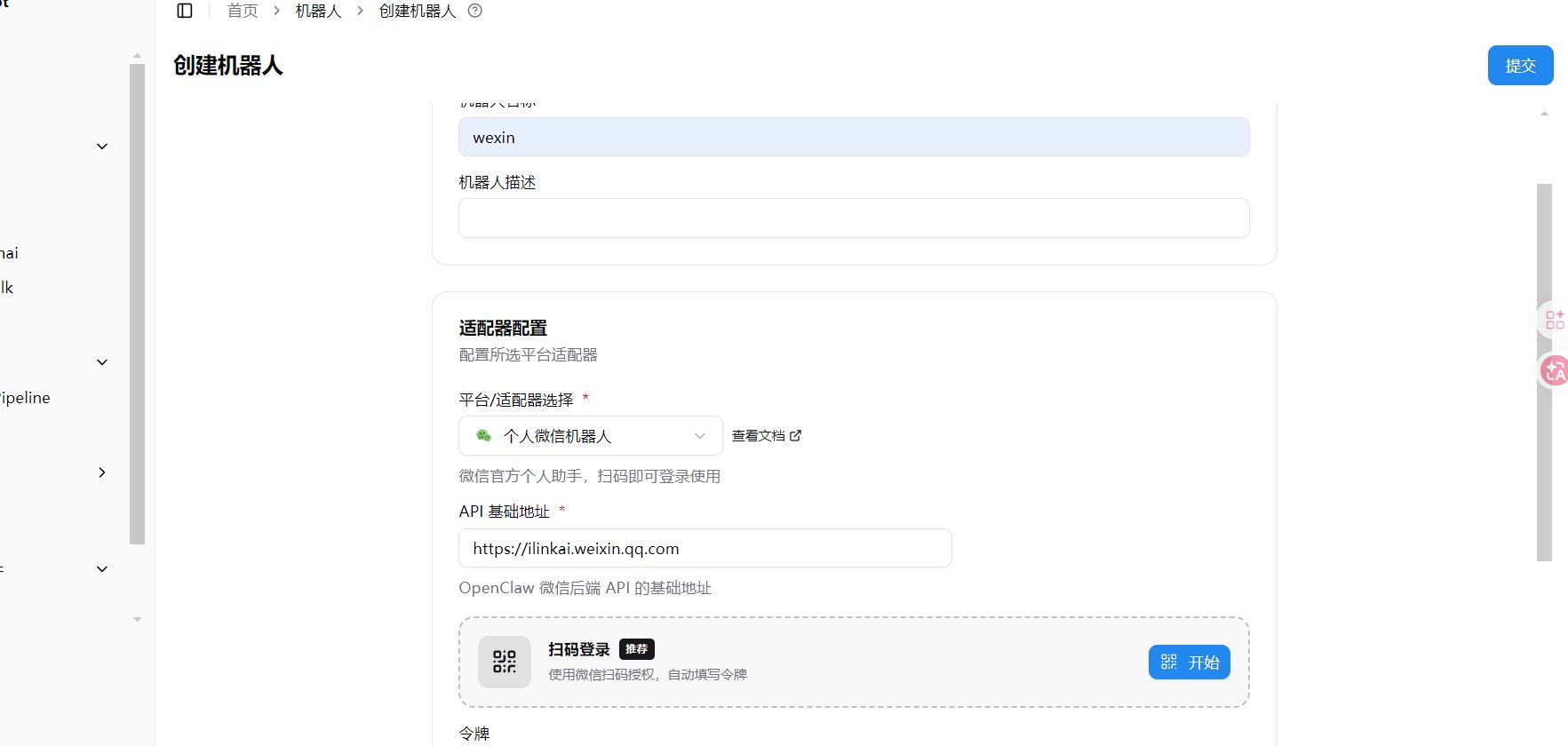
1. Open LangBot WebUI, go to **Bots > Create Bot**
2. Enter a bot name, select `Personal WeChat Bot` as the platform/adapter
3. In the **Scan Login** section that appears, click the **Start** button
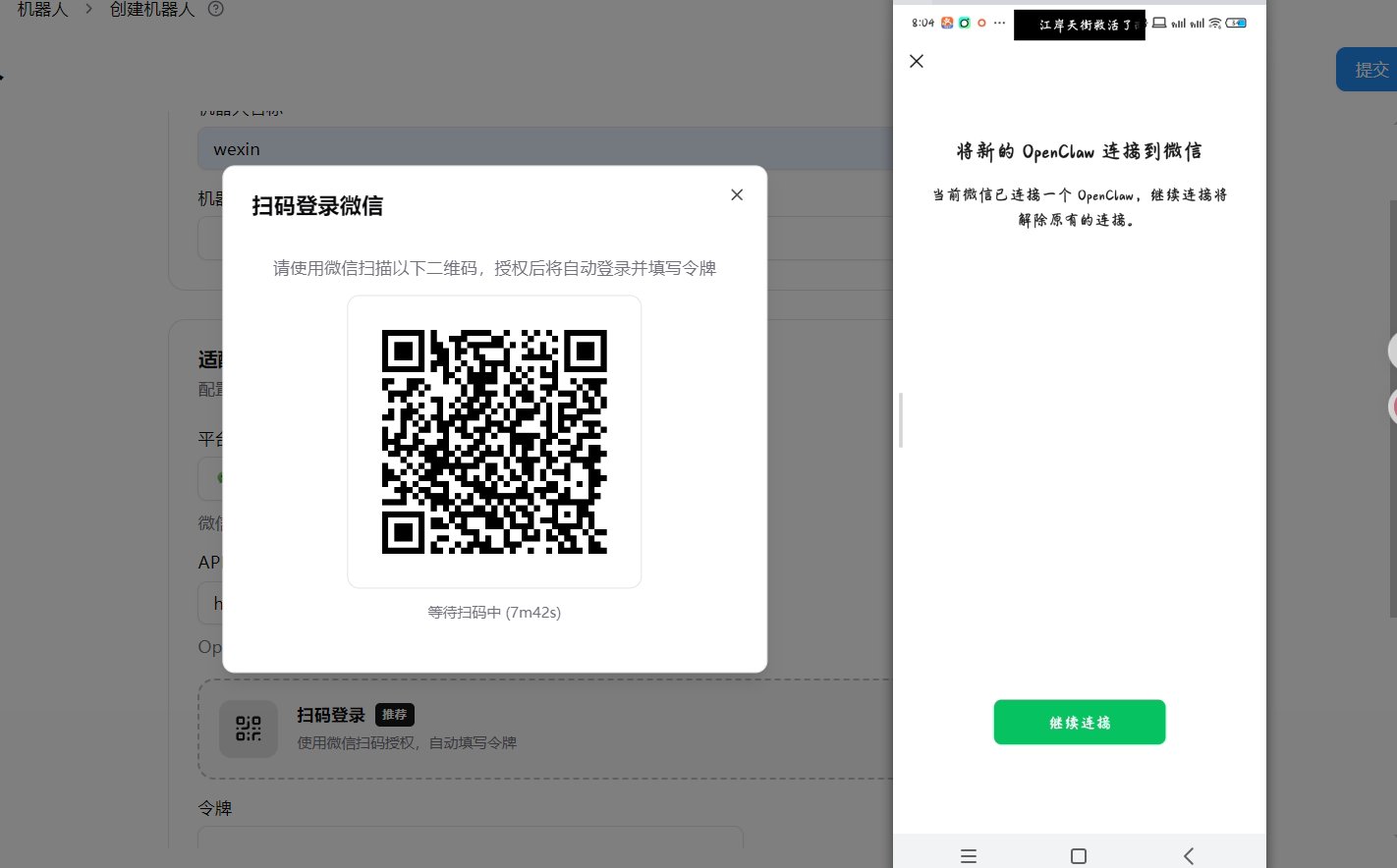
 4. Scan the QR code with WeChat. On your phone, you'll see "Connect new OpenClaw to WeChat", tap **Continue**
 5. After authorization, the token and account ID will be **auto-filled** in the form
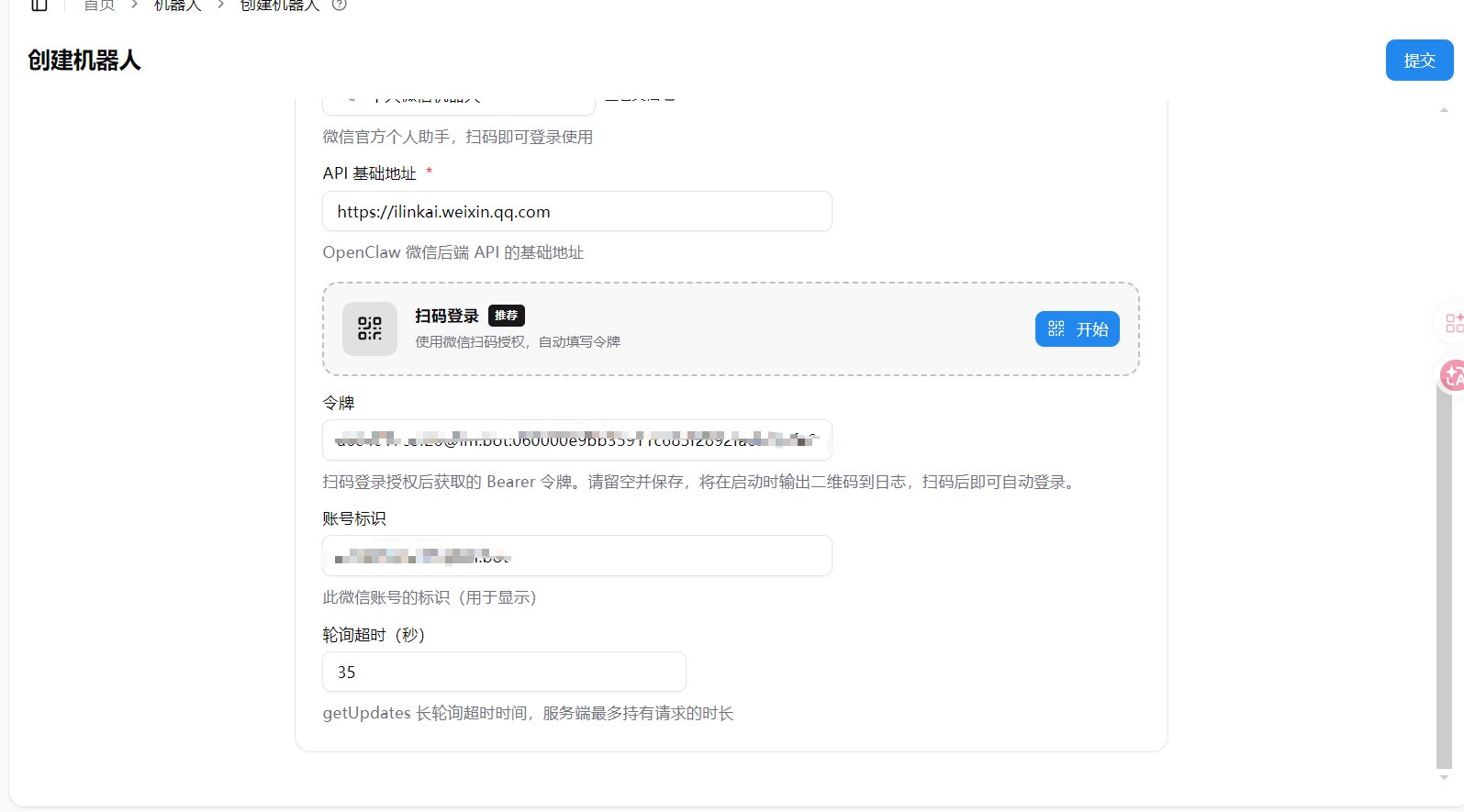 6. Click **Submit** to complete
If connection fails, please confirm your WeChat version is 8.0.69 or above.
### Confirm Successful Login
After scanning successfully, your phone will enter the ClawBot chat page on WeChat.
6. Click **Submit** to complete
If connection fails, please confirm your WeChat version is 8.0.69 or above.
### Confirm Successful Login
After scanning successfully, your phone will enter the ClawBot chat page on WeChat.
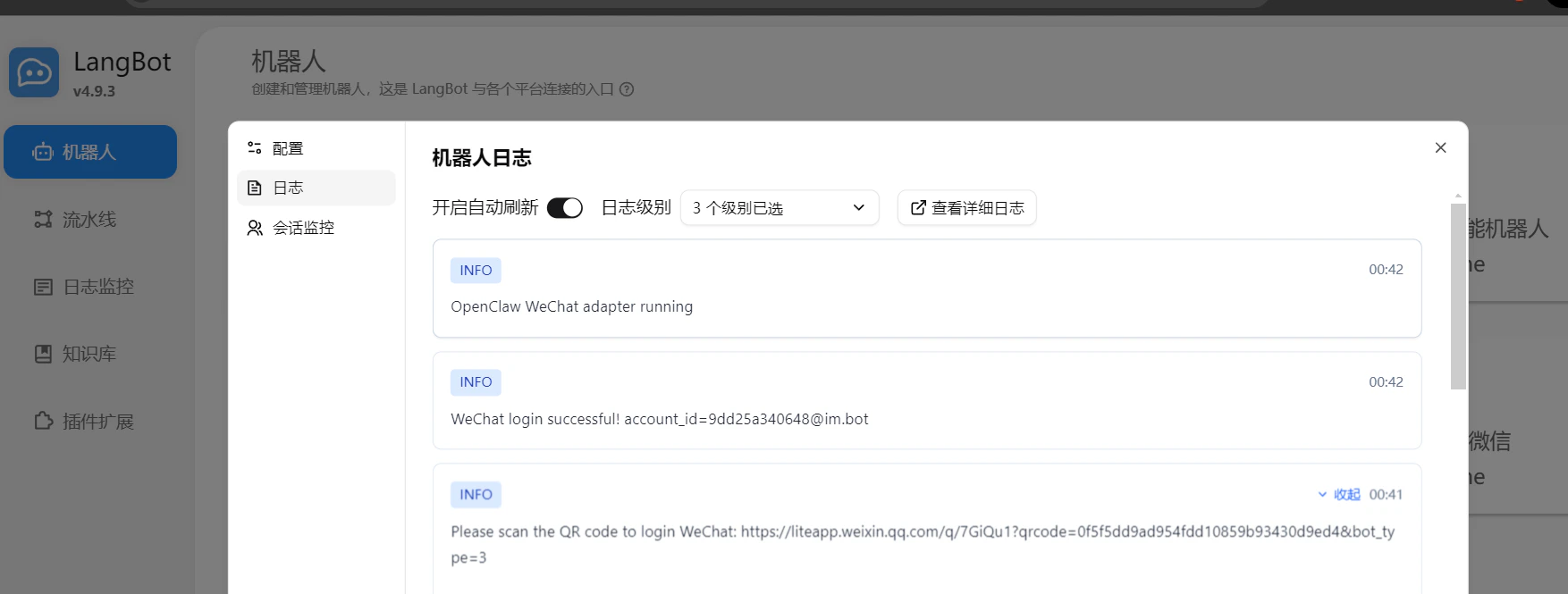
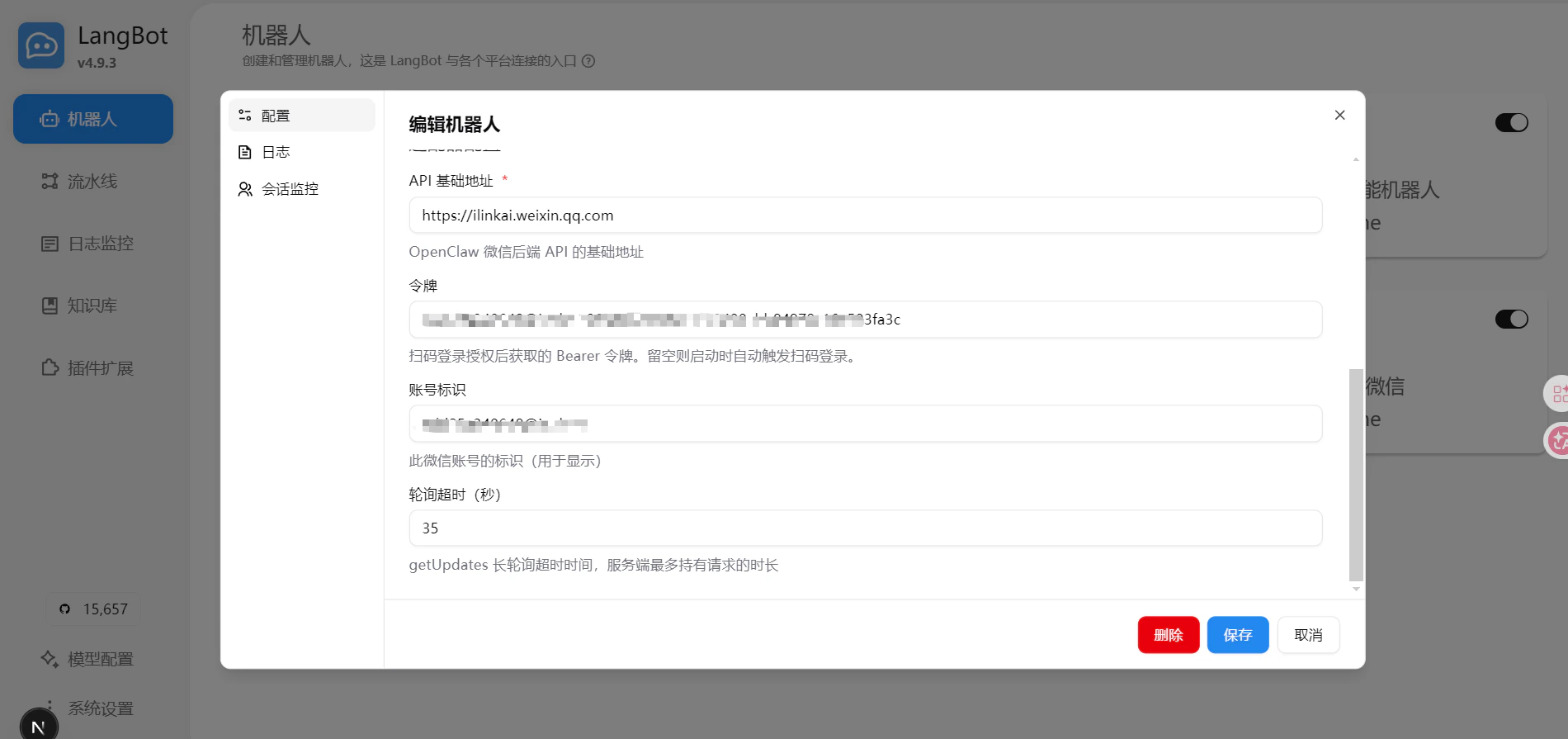
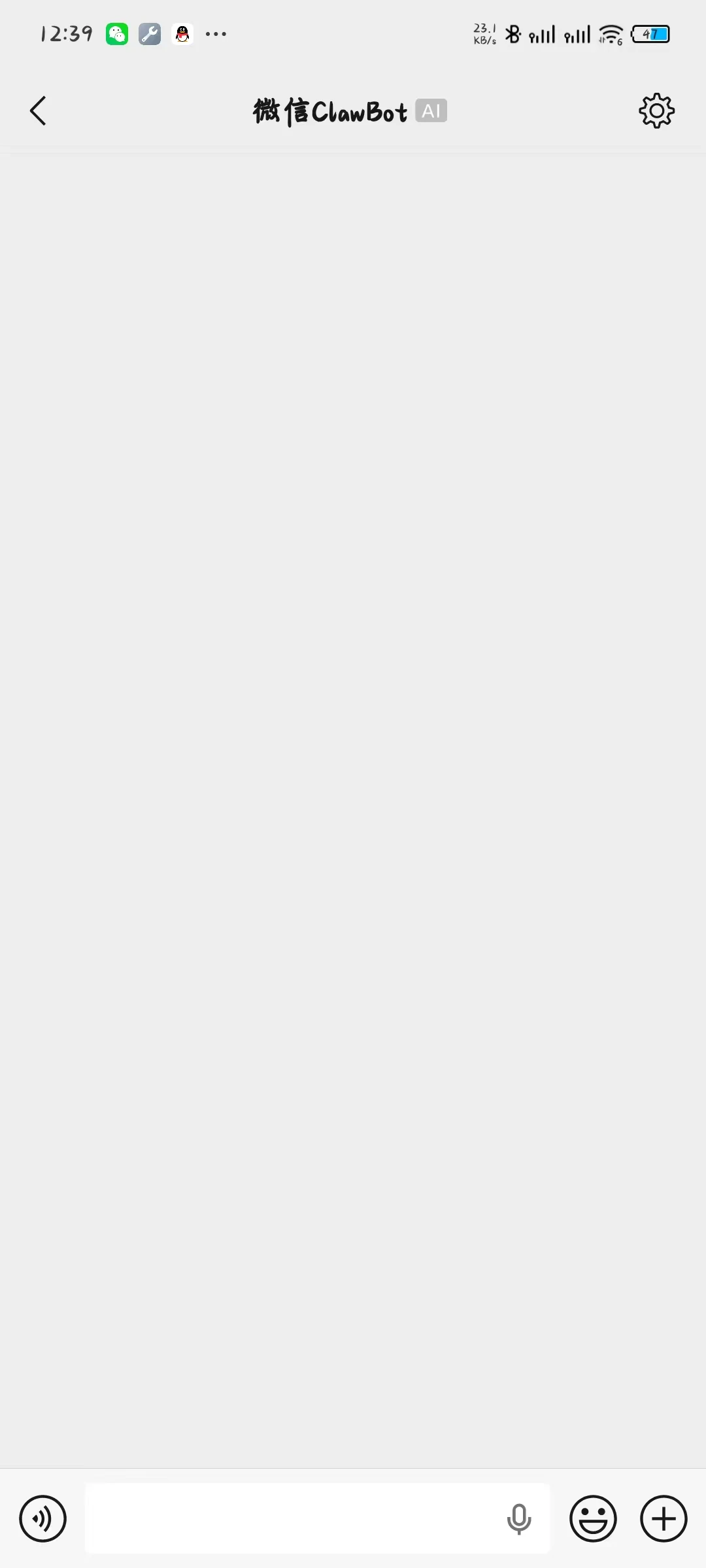 At the same time, the LangBot logs will show a successful connection message, and the token and account fields on the configuration page will be automatically updated, indicating a successful login.
 ## Start Using
Once logged in, send messages to the ClawBot chat page you just entered using the scanned account, and LangBot will automatically reply.
This documentation is built and hosted on [Mintlify](https://mintlify.com), a developer documentation platform.
## Start Using
Once logged in, send messages to the ClawBot chat page you just entered using the scanned account, and LangBot will automatically reply.
This documentation is built and hosted on [Mintlify](https://mintlify.com), a developer documentation platform.